<?xml version="1.0" encoding="utf-8"?>
<feed xmlns="http://www.w3.org/2005/Atom">
  <title>米斯特周</title>
  
  <subtitle>~Dreams Come True~</subtitle>
  <link href="https://82885312.vercel.app/atom.xml" rel="self"/>
  
  <link href="https://82885312.vercel.app/"/>
  <updated>2026-04-20T05:17:44.780Z</updated>
  <id>https://82885312.vercel.app/</id>
  
  <author>
    <name>zhou</name>
    
  </author>
  
  <generator uri="https://hexo.io/">Hexo</generator>
  
  <entry>
    <title>CertBot申请证书</title>
    <link href="https://82885312.vercel.app/2026/04/12/2026-04-13-howto-use-certbot-with-cloudflare/"/>
    <id>https://82885312.vercel.app/2026/04/12/2026-04-13-howto-use-certbot-with-cloudflare/</id>
    <published>2026-04-12T18:50:32.000Z</published>
    <updated>2026-04-20T05:17:44.780Z</updated>
    
    <content type="html"><![CDATA[<p>1、安装certbot</p><pre><code class="highlight plaintext">apt install certbot python3-certbot-dns-cloudflare</code></pre><span id="more"></span><p>2、设置cloudflare Token</p><pre><code class="highlight plaintext">vi .cerbot# cloudflare tokendns_cloudflare_api_token = your_cloudflare_tokenchmod 600 .cerbot</code></pre><p>3、申请证书</p><pre><code class="highlight plaintext">certbot certonly --dns-cloudflare --dns-cloudflare-credentials ~/.certbot -d example.com</code></pre><p>4、部署脚本</p><pre><code class="highlight plaintext">#!/bin/bash# 定义目标域名和目标目录DOMAIN=&quot;example.com&quot;  # 替换为你的域名DEST_DIR=&quot;/path/to/destination&quot;  # 替换为目标目录# 检查目标目录是否存在，不存在则创建if [ ! -d &quot;$DEST_DIR&quot; ]; then    mkdir -p &quot;$DEST_DIR&quot;fi# 从 Certbot 的默认目录复制证书文件到目标目录cp &quot;/etc/letsencrypt/live/$DOMAIN/privkey.pem&quot; &quot;$DEST_DIR/privkey.pem&quot;cp &quot;/etc/letsencrypt/live/$DOMAIN/fullchain.pem&quot; &quot;$DEST_DIR/fullchain.pem&quot;# 设置目标目录中的文件权限chmod 600 &quot;$DEST_DIR/privkey.pem&quot; &quot;$DEST_DIR/fullchain.pem&quot;echo &quot;证书已成功复制到 $DEST_DIR&quot;</code></pre><p>6、调用脚本 </p><pre><code class="highlight plaintext">certbot renew --deploy-hook &quot;/path/to/your/script.sh&quot;</code></pre>]]></content>
    
    
    <summary type="html">&lt;p&gt;1、安装certbot&lt;/p&gt;
&lt;pre&gt;&lt;code class=&quot;highlight plaintext&quot;&gt;apt install certbot python3-certbot-dns-cloudflare&lt;/code&gt;&lt;/pre&gt;</summary>


    <category term="Linux" scheme="https://82885312.vercel.app/categories/Linux/"/>
    
    
    <category term="Cloudflare" scheme="https://82885312.vercel.app/tags/Cloudflare/"/>
    
    <category term="certbot" scheme="https://82885312.vercel.app/tags/certbot/"/>
    
  </entry>
  
  <entry>
    <title>Tailscale-自建Derp中继服务器</title>
    <link href="https://82885312.vercel.app/2026/03/11/2026-03-12-tailscale-setting-derp-relay-server/"/>
    <id>https://82885312.vercel.app/2026/03/11/2026-03-12-tailscale-setting-derp-relay-server/</id>
    <published>2026-03-11T23:29:32.000Z</published>
    <updated>2026-04-20T05:17:44.780Z</updated>
    
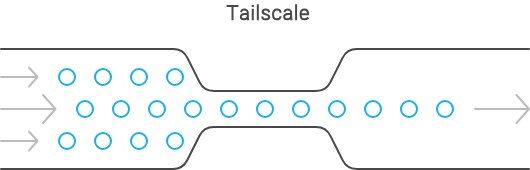
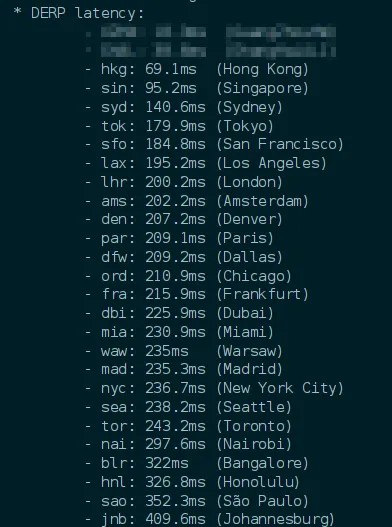
    <content type="html"><![CDATA[<h1 id="1-Tailscale-与-DERP-简介"><a href="#1-Tailscale-与-DERP-简介" class="headerlink" title="1. Tailscale 与 DERP 简介"></a>1. Tailscale 与 DERP 简介</h1><h2 id="Tailscale-是什么？"><a href="#Tailscale-是什么？" class="headerlink" title="Tailscale 是什么？"></a>Tailscale 是什么？</h2><p>Tailscale 是一个基于 Wireguard 的带有多种网络工具的 P2P 组网工具。得益于其 P2P 的特性，Tailscale 还可以进行内网穿透，打破 NAT 的限制直达另一台主机。</p><h2 id="DERP-是什么？"><a href="#DERP-是什么？" class="headerlink" title="DERP 是什么？"></a>DERP 是什么？</h2><p><code>DERP</code>是一个 Tailscale 自行开发的中继服务。当所处网络环境难以穿透（如校园网、移动大内网、4G、5G等）时，所有流量都会经由 DERP 中转至目标地址。</p><span id="more"></span><p><img src="https://www.xiaobaby.eu.org/file/AgACAgEAAyEGAASQfha-AAMiadyLT3V30EecRdb7XfoEQCsQDdEAAhwMaxvWRuhGoCoF6d_EjY0BAAMCAAN4AAM7BA.png"></p><p>在默认情况下，Tailscale 官方已经提供了环大陆的官方 DERP 服务（见下方<code>图 1</code>），但是由于中国大陆的网络连通性等问题，官方并未提供大陆的 DERP 节点。为了确保大陆的打通成功率，我们需要自建一个 DERP 服务，来帮助我们“打洞”。</p><p><img src="https://www.xiaobaby.eu.org/file/AgACAgEAAyEGAASQfha-AAMjadyLm5x5gFVxjYxywD5oncBmt7oAAh0MaxvWRuhGXAABKQqYeC4IAQADAgADeAADOwQ.png"></p><h1 id="2-安装-Docker-与-Docker-compose"><a href="#2-安装-Docker-与-Docker-compose" class="headerlink" title="2. 安装 Docker 与 Docker compose"></a>2. 安装 Docker 与 Docker compose</h1><p>这段请自行参考 Docker 官方网站与其他作者写的部署教程，毕竟每个发行版都不尽相同。</p><pre><code class="highlight plaintext">curl -fsSL https://get.docker.com | bash -s docker或者curl -fsSL https://get.docker.com | bash -s docker --mirror Aliyun</code></pre><h1 id="3-在-DERP-节点服务中部署-Tailscale-客户端"><a href="#3-在-DERP-节点服务中部署-Tailscale-客户端" class="headerlink" title="3. 在 DERP 节点服务中部署 Tailscale 客户端"></a>3. 在 DERP 节点服务中部署 Tailscale 客户端</h1><p>先安装</p><pre><code class="highlight plaintext">curl -fsSL https://tailscale.com/install.sh | sh</code></pre><p>登录</p><pre><code class="highlight plaintext">tailscale login</code></pre><h1 id="4-启动-Docker-镜像"><a href="#4-启动-Docker-镜像" class="headerlink" title="4. 启动 Docker 镜像"></a>4. 启动 Docker 镜像</h1><p>可用的docker-compose.yaml</p><pre><code class="highlight plaintext">services:    derper:    image: fredliang/derper    restart: always    ports:      - 13443:443      - 3478:3478/udp    environment:      DERP_DOMAIN: &quot;derp.example.com&quot;      DERP_CERT_MODE: &quot;manual&quot;      DERP_ADDR: &quot;:443&quot;      DERP_VERIFY_CLENTS: &quot;true&quot;    volumes:      - /var/run/tailscale/tailscaled.sock:/var/run/tailscale/tailscaled.sock      - /home/derp:/app/certs</code></pre><p>注意：本地路径 &#x2F;home&#x2F;derp 保存与域名相同名称的ssl证书和私钥，例如<code>derp.example.com.cer</code>,<code>derp.example.com.key</code>。</p><h1 id="5-配置-tailscale-ACL"><a href="#5-配置-tailscale-ACL" class="headerlink" title="5. 配置 tailscale ACL"></a>5. 配置 tailscale ACL</h1><pre><code class="highlight plaintext">&quot;derpMap&quot;: &#123;&quot;OmitDefaultRegions&quot;: false,//这里改成true就是只用自己的derp互联，建议不改，如果要跨网可以改成true&quot;Regions&quot;: &#123;&quot;900&quot;: &#123;&quot;RegionID&quot;:   900,&quot;RegionCode&quot;: &quot;85&quot;,&quot;RegionName&quot;: &quot;HK&quot;,&quot;Nodes&quot;: [&#123;&quot;Name&quot;:     &quot;myderp&quot;,&quot;RegionID&quot;: 900,&quot;HostName&quot;: &quot;derp.example.com&quot;,&quot;DERPPort&quot;: 13443,&quot;STUNPort&quot;: 3478 //这里改成stun的端口&#125;],&#125;,&#125;,&#125;,</code></pre><h1 id="6-测试"><a href="#6-测试" class="headerlink" title="6. 测试"></a>6. 测试</h1><p>重新连接Tailscale，然后测试</p><pre><code class="highlight plaintext">tailscale netcheck</code></pre>]]></content>
    
    
    <summary type="html">&lt;h1 id=&quot;1-Tailscale-与-DERP-简介&quot;&gt;&lt;a href=&quot;#1-Tailscale-与-DERP-简介&quot; class=&quot;headerlink&quot; title=&quot;1. Tailscale 与 DERP 简介&quot;&gt;&lt;/a&gt;1. Tailscale 与 DERP 简介&lt;/h1&gt;&lt;h2 id=&quot;Tailscale-是什么？&quot;&gt;&lt;a href=&quot;#Tailscale-是什么？&quot; class=&quot;headerlink&quot; title=&quot;Tailscale 是什么？&quot;&gt;&lt;/a&gt;Tailscale 是什么？&lt;/h2&gt;&lt;p&gt;Tailscale 是一个基于 Wireguard 的带有多种网络工具的 P2P 组网工具。得益于其 P2P 的特性，Tailscale 还可以进行内网穿透，打破 NAT 的限制直达另一台主机。&lt;/p&gt;
&lt;h2 id=&quot;DERP-是什么？&quot;&gt;&lt;a href=&quot;#DERP-是什么？&quot; class=&quot;headerlink&quot; title=&quot;DERP 是什么？&quot;&gt;&lt;/a&gt;DERP 是什么？&lt;/h2&gt;&lt;p&gt;&lt;code&gt;DERP&lt;/code&gt;是一个 Tailscale 自行开发的中继服务。当所处网络环境难以穿透（如校园网、移动大内网、4G、5G等）时，所有流量都会经由 DERP 中转至目标地址。&lt;/p&gt;</summary>


    <category term="Linux" scheme="https://82885312.vercel.app/categories/Linux/"/>
    
    
    <category term="Tailscale" scheme="https://82885312.vercel.app/tags/Tailscale/"/>
    
  </entry>
  
  <entry>
    <title>Github无法push代码报Connection closed</title>
    <link href="https://82885312.vercel.app/2024/11/27/2024-11-28-how-to-fix-github-cant-push/"/>
    <id>https://82885312.vercel.app/2024/11/27/2024-11-28-how-to-fix-github-cant-push/</id>
    <published>2024-11-27T18:50:32.000Z</published>
    <updated>2026-04-20T05:17:44.780Z</updated>
    
    <content type="html"><![CDATA[<p>今天在更新博客文章时，发现无法push代码，错误如下：</p><pre><code class="highlight plaintext">Connection closed by 140.82.116.3 port 22fatal: Could not read from remote repository.Please make sure you have the correct access rightsand the repository exists.</code></pre><span id="more"></span><p>Google了一下错误信息，反正肯定是和防火墙有关，禁止了我们访问GitHub的22端口，通过查看GitHub的文档，可以使用HTTPS端口进行push代码。</p><h2 id="测试HTTPS端口的SSH是否可行"><a href="#测试HTTPS端口的SSH是否可行" class="headerlink" title="测试HTTPS端口的SSH是否可行"></a>测试HTTPS端口的SSH是否可行</h2><p>首先，要测试通过 HTTPS 端口的 SSH 是否可行，请运行以下 SSH 命令：：</p><pre><code class="highlight plaintext">ssh -T -p 443 git@ssh.github.com</code></pre><p>返回如下信息，表示你可以使用这个办法去规避22端口无法push的问题：</p><pre><code class="highlight plaintext">Hi &lt;username&gt;! You&#x27;ve successfully authenticated, but GitHub does not provide shell access.</code></pre><h2 id="修改SSH配置文件"><a href="#修改SSH配置文件" class="headerlink" title="修改SSH配置文件"></a>修改SSH配置文件</h2><p>打开<code>.ssh/config</code>文件，增加如下内容：</p><pre><code class="highlight plaintext">Host github.com    Hostname ssh.github.com    Port 443    User git</code></pre><h2 id="测试"><a href="#测试" class="headerlink" title="测试"></a>测试</h2><h3 id="Clone代码"><a href="#Clone代码" class="headerlink" title="Clone代码"></a>Clone代码</h3><pre><code class="highlight plaintext">git clone ssh://git@ssh.github.com:443/YOUR-USERNAME/YOUR-REPOSITORY.git</code></pre><h3 id="Push代码"><a href="#Push代码" class="headerlink" title="Push代码"></a>Push代码</h3><pre><code class="highlight plaintext">git push</code></pre>]]></content>
    
    
    <summary type="html">&lt;p&gt;今天在更新博客文章时，发现无法push代码，错误如下：&lt;/p&gt;
&lt;pre&gt;&lt;code class=&quot;highlight plaintext&quot;&gt;Connection closed by 140.82.116.3 port 22
fatal: Could not read from remote repository.

Please make sure you have the correct access rights
and the repository exists.&lt;/code&gt;&lt;/pre&gt;</summary>


    <category term="Windows" scheme="https://82885312.vercel.app/categories/Windows/"/>
    
    
    <category term="GitHub" scheme="https://82885312.vercel.app/tags/GitHub/"/>
    
  </entry>
  
  <entry>
    <title>Cloudflare Tunnels无法建立隧道的解决办法</title>
    <link href="https://82885312.vercel.app/2024/11/26/2024-11-26-how-to-fix-cloudflare-tunnel-no-connection/"/>
    <id>https://82885312.vercel.app/2024/11/26/2024-11-26-how-to-fix-cloudflare-tunnel-no-connection/</id>
    <published>2024-11-26T04:50:32.000Z</published>
    <updated>2026-04-20T05:17:44.780Z</updated>
    
    <content type="html"><![CDATA[<p>今天在使用CloudFlare的tunnel，给NAS搞一个公网访问，结果发现从NAS里面运行docker，Cloudflare客户端无法建立连接，错误如下：</p><pre><code class="highlight plaintext">2024-11-26T09:05:39Z ERR Failed to dial a quic connection error=&quot;failed to dial to edge with quic: timeout: no recent network activity&quot; connIndex=0 event=0 ip=198.18.0.502024-11-26T09:05:39Z INF Retrying connection in up to 2s connIndex=0 event=0 ip=198.18.0.502024-11-26T09:05:45Z ERR Failed to dial a quic connection error=&quot;failed to dial to edge with quic: timeout: no recent network activity&quot; connIndex=0 event=0 ip=198.18.0.492024-11-26T09:05:45Z INF Retrying connection in up to 4s connIndex=0 event=0 ip=198.18.0.492024-11-26T09:05:54Z ERR Failed to dial a quic connection error=&quot;failed to dial to edge with quic: timeout: no recent network activity&quot; connIndex=0 event=0 ip=198.18.0.502024-11-26T09:05:54Z INF Retrying connection in up to 8s connIndex=0 event=0 ip=198.18.0.50</code></pre><span id="more"></span><p>网上查询了一下，大家的说法是NAT，防火墙，再就是客户端的协议方式，最后查了一下自己的网络，排除了NAT，防火墙问题，于是就按照下面的方式修改协议，在docker命令中增加<code>--protocol http2</code>即可，此时强制指定协议为http2，使用的是TCP，这样就不会被运营商阻断了。当然，也可以设置为–protocol auto ，开启自动切换，默认依然是quic，但是失败后可自动切换到http2。</p><pre><code class="highlight plaintext">sudo docker run cloudflare/cloudflared:latest tunnel --no-autoupdate run --protocol http2 --token &lt;YOUR_TOKEN&gt;</code></pre><p>心想这样应该就可以了吧，结果又报了下面的错误：</p><pre><code class="highlight plaintext">2024-11-26T09:11:24Z ERR Unable to establish connection with Cloudflare edge error=&quot;TLS handshake with edge error: EOF&quot; connIndex=0 event=0 ip=198.18.0.492024-11-26T09:11:24Z ERR Serve tunnel error error=&quot;TLS handshake with edge error: EOF&quot; connIndex=0 event=0 ip=198.18.0.492024-11-26T09:11:24Z INF Retrying connection in up to 16s connIndex=0 event=0 ip=198.18.0.492024-11-26T09:11:32Z ERR Unable to establish connection with Cloudflare edge error=&quot;TLS handshake with edge error: EOF&quot; connIndex=0 event=0 ip=198.18.0.502024-11-26T09:11:32Z ERR Serve tunnel error error=&quot;TLS handshake with edge error: EOF&quot; connIndex=0 event=0 ip=198.18.0.502024-11-26T09:11:32Z INF Retrying connection in up to 32s connIndex=0 event=0 ip=198.18.0.502024-11-26T09:11:41Z ERR Unable to establish connection with Cloudflare edge error=&quot;TLS handshake with edge error: EOF&quot; connIndex=0 event=0 ip=198.18.0.492024-11-26T09:11:41Z ERR Serve tunnel error error=&quot;TLS handshake with edge error: EOF&quot; connIndex=0 event=0 ip=198.18.0.49</code></pre><p>又是查网络发现这个<a href="https://github.com/cloudflare/cloudflared/issues/376">issue</a>说的靠谱，我家里是软路由透明代理，DNS应该是使用了旁路由的DNS，导致了这个问题，于是我把NAS的dns地址手动指定为我的主路由地址，再次运行docker，查看日志，it works!</p><pre><code class="highlight plaintext">2024-11-26T09:20:02Z INF Initial protocol http22024-11-26T09:20:02Z INF ICMP proxy will use A.A.A.A as source for IPv42024-11-26T09:20:02Z INF ICMP proxy will use 0000::0000:0000:0000:0000 in zone eth0 as source for IPv62024-11-26T09:20:07Z INF Starting metrics server on 127.0.0.1:45025/metrics2024-11-26T09:20:08Z INF Registered tunnel connection connIndex=0 connection=xxxxxxxxx event=0 ip=198.41.200.193 location=sjc07 protocol=http2</code></pre>]]></content>
    
    
    <summary type="html">&lt;p&gt;今天在使用CloudFlare的tunnel，给NAS搞一个公网访问，结果发现从NAS里面运行docker，Cloudflare客户端无法建立连接，错误如下：&lt;/p&gt;
&lt;pre&gt;&lt;code class=&quot;highlight plaintext&quot;&gt;2024-11-26T09:05:39Z ERR Failed to dial a quic connection error=&amp;quot;failed to dial to edge with quic: timeout: no recent network activity&amp;quot; connIndex=0 event=0 ip=198.18.0.50
2024-11-26T09:05:39Z INF Retrying connection in up to 2s connIndex=0 event=0 ip=198.18.0.50
2024-11-26T09:05:45Z ERR Failed to dial a quic connection error=&amp;quot;failed to dial to edge with quic: timeout: no recent network activity&amp;quot; connIndex=0 event=0 ip=198.18.0.49
2024-11-26T09:05:45Z INF Retrying connection in up to 4s connIndex=0 event=0 ip=198.18.0.49
2024-11-26T09:05:54Z ERR Failed to dial a quic connection error=&amp;quot;failed to dial to edge with quic: timeout: no recent network activity&amp;quot; connIndex=0 event=0 ip=198.18.0.50
2024-11-26T09:05:54Z INF Retrying connection in up to 8s connIndex=0 event=0 ip=198.18.0.50&lt;/code&gt;&lt;/pre&gt;</summary>


    <category term="Linux" scheme="https://82885312.vercel.app/categories/Linux/"/>
    
    
    <category term="Cloudflare" scheme="https://82885312.vercel.app/tags/Cloudflare/"/>
    
  </entry>
  
  <entry>
    <title>Stay With Me - Miki Matsubara</title>
    <link href="https://82885312.vercel.app/2024/11/23/2024-11-23-stay-with-me-jp/"/>
    <id>https://82885312.vercel.app/2024/11/23/2024-11-23-stay-with-me-jp/</id>
    <published>2024-11-23T04:50:32.000Z</published>
    <updated>2026-04-20T05:17:44.780Z</updated>
    
    <content type="html"><![CDATA[<p>抖音流行了一个阶段，歌曲来自2008年发布的《Miki Matsubara Best Collection》 专辑。我特地查了一下这个歌星，很可惜的是在2004年10月7日，因宫颈癌去世，享年44岁。</p><span id="more"></span><iframe style="border-radius:12px" src="https://open.spotify.com/embed/track/2BHj31ufdEqVK5CkYDp9mA?utm_source=generator" width="100%" height="352" frameBorder="0" allowfullscreen="" allow="autoplay; clipboard-write; encrypted-media; fullscreen; picture-in-picture" loading="lazy"></iframe><p>歌词如下：</p><blockquote><p>To you, yes, my love to you<br>Yes, my love to you, you, to you<br>私は私 貴方は貴方と<br>昨夜言ってた そんな気もするわ<br>グレイのジャケットに<br>見覚えがある コーヒーのしみ<br>相変らずなのね<br>ショーウィンドウに 二人映れば<br>Stay with me<br>真夜中のドアをたたき<br>帰らないでと泣いた<br>あの季節が 今 目の前<br>Stay with me<br>口ぐせを言いながら<br>二人の瞬間を抱いて<br>まだ忘れず 大事にしていた<br>恋と愛とは 違うものだよと<br>昨夜言われた そんな気もするわ<br>二度目の冬が来て<br>離れていった貴方の心<br>ふり返ればいつも<br>そこに 貴方を感じていたの<br>Stay with me<br>真夜中のドアをたたき<br>心に穴があいた<br>あの季節が 今 目の前<br>Stay with me<br>淋しさまぎらわして<br>置いたレコードの針<br>同じメロディ 繰り返していた<br>Stay with me<br>真夜中のドアをたたき<br>帰らないでと泣いた<br>あの季節が 今 目の前<br>Stay with me<br>口ぐせを言いながら<br>二人の瞬間を抱いて<br>まだ忘れず 暖めてた<br>Stay with me<br>真夜中のドアをたたき<br>帰らないでと泣いた<br>あの季節が 今 目の前<br>Stay with me<br>口ぐせを言いながら<br>二人の瞬間を抱いて<br>まだ忘れず 暖めてた<br>Stay with me<br>真夜中のドアをたたき<br>帰らないでと泣いた<br>あの季節が 今 目の前<br>Stay with me</p></blockquote>]]></content>
    
    
    <summary type="html">&lt;p&gt;抖音流行了一个阶段，歌曲来自2008年发布的《Miki Matsubara Best Collection》 专辑。我特地查了一下这个歌星，很可惜的是在2004年10月7日，因宫颈癌去世，享年44岁。&lt;/p&gt;</summary>


    <category term="音乐" scheme="https://82885312.vercel.app/categories/%E9%9F%B3%E4%B9%90/"/>
    
    
    <category term="Miki Matsubara" scheme="https://82885312.vercel.app/tags/Miki-Matsubara/"/>
    
  </entry>
  
  <entry>
    <title>CloudFlare Tunnel 免费内网穿透的简明教程</title>
    <link href="https://82885312.vercel.app/2024/11/23/2024-11-23-howto-use-cloudflare-tunnel/"/>
    <id>https://82885312.vercel.app/2024/11/23/2024-11-23-howto-use-cloudflare-tunnel/</id>
    <published>2024-11-23T04:28:35.000Z</published>
    <updated>2026-04-20T05:17:44.780Z</updated>
    
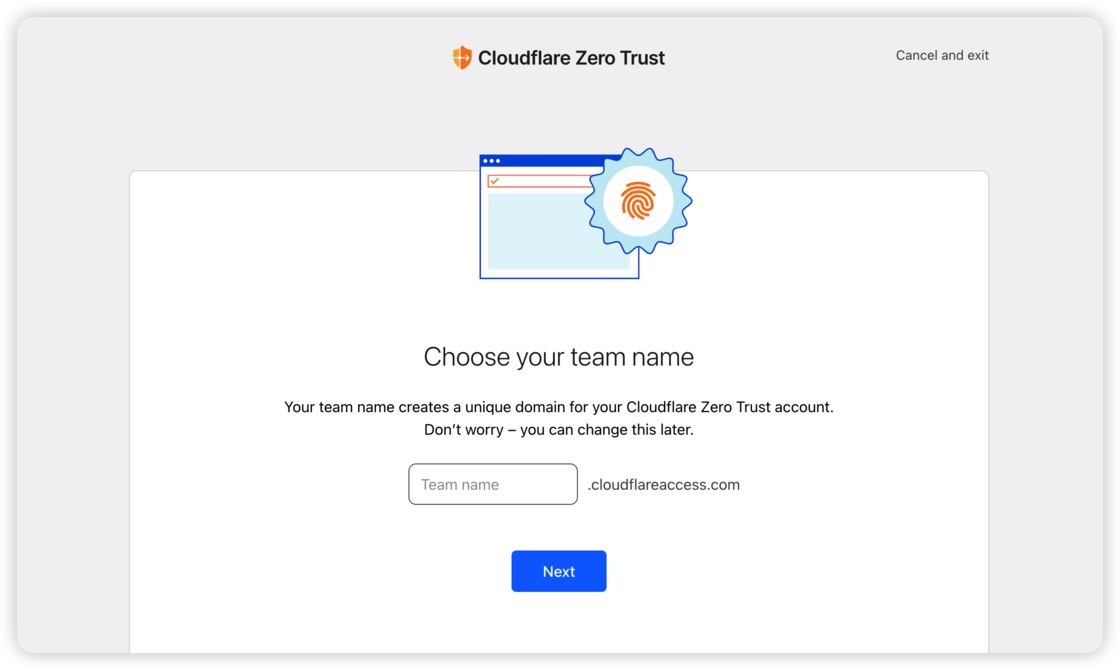
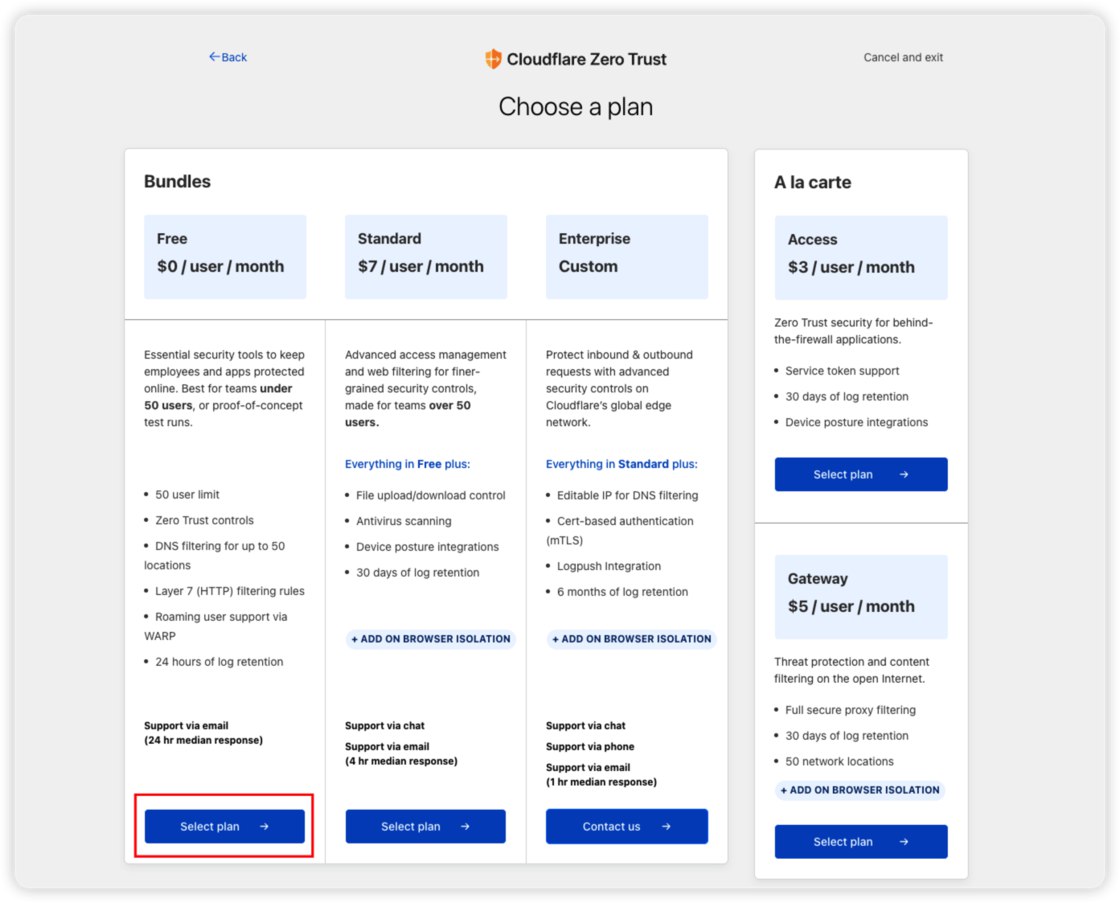
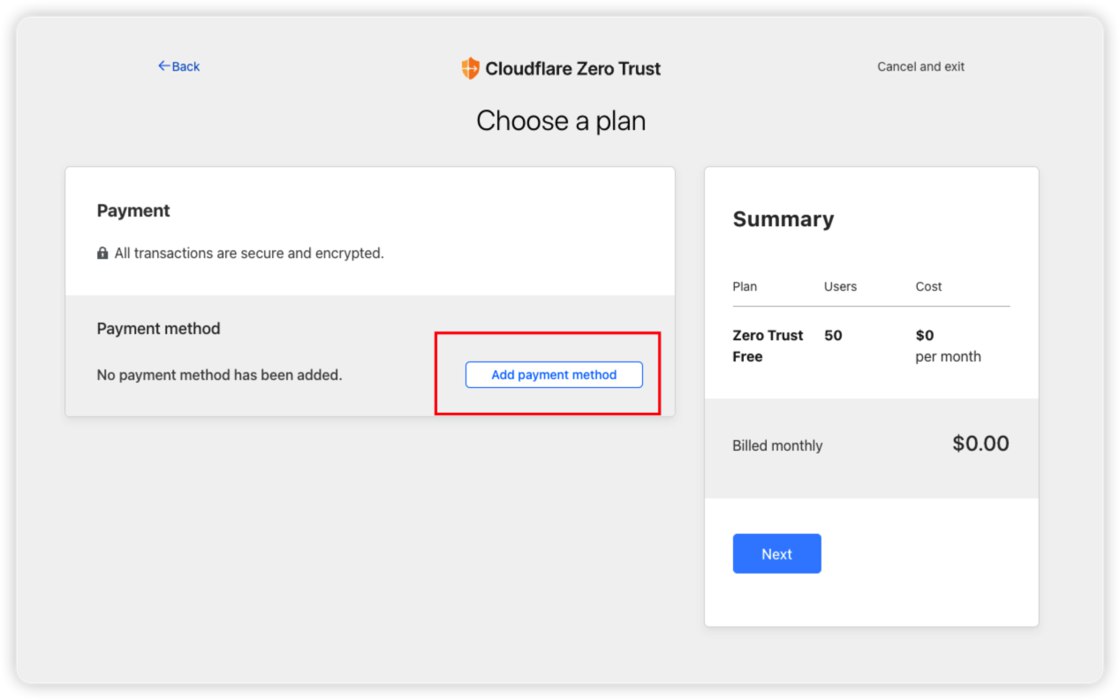
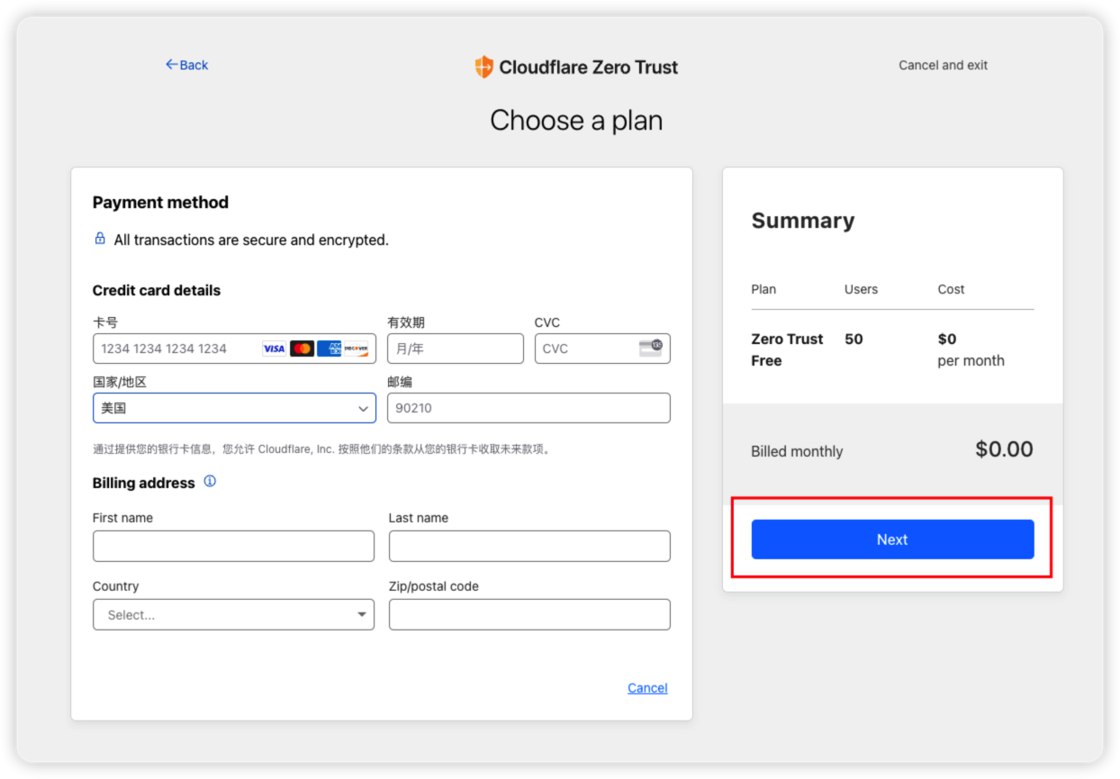
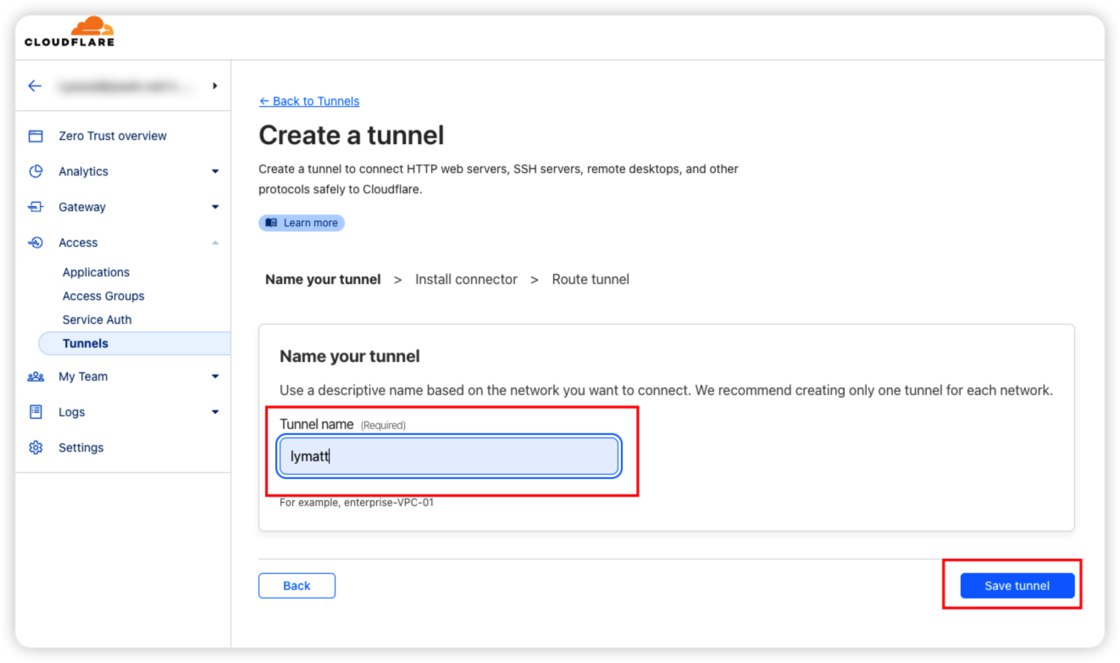
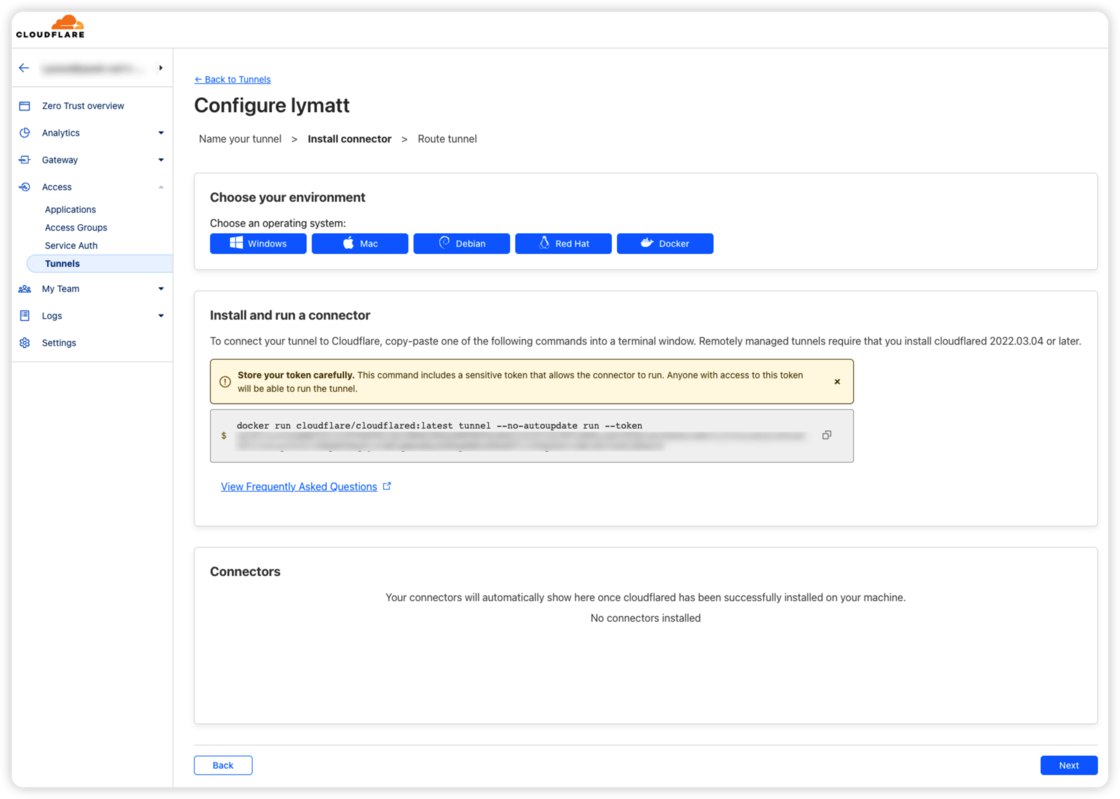
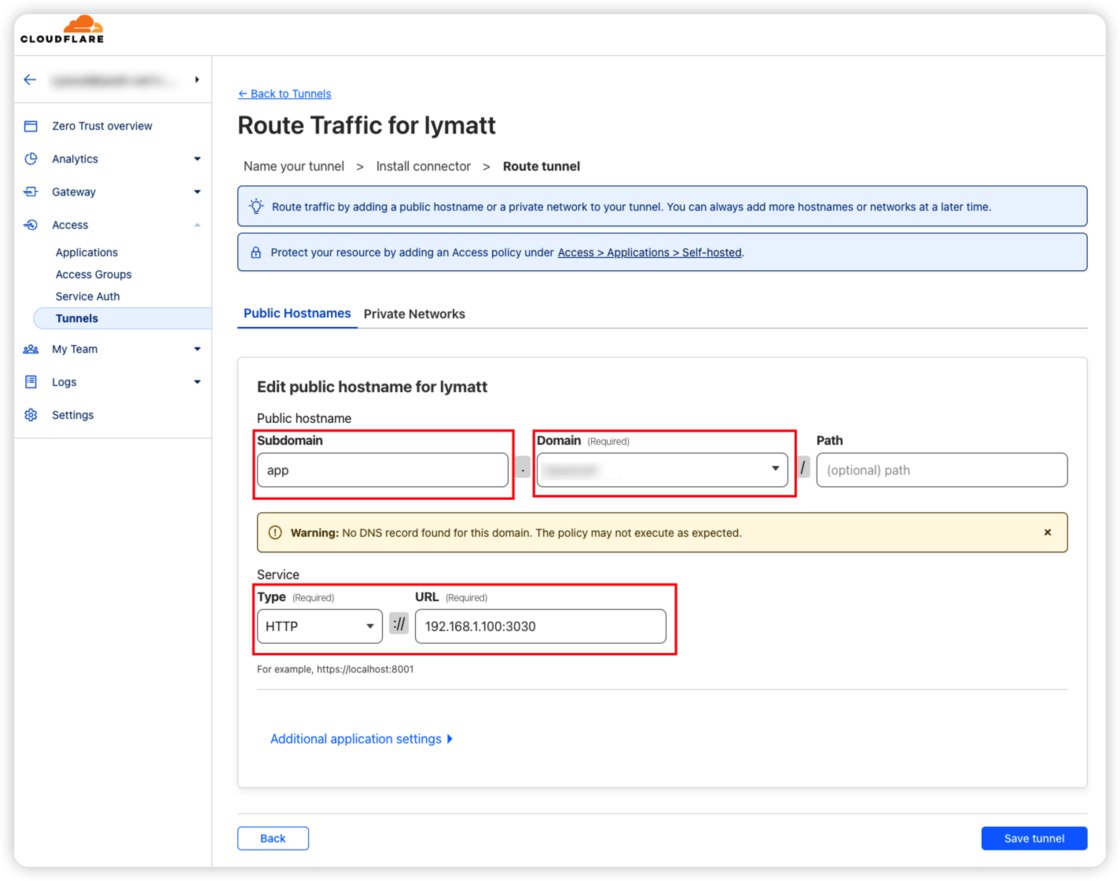
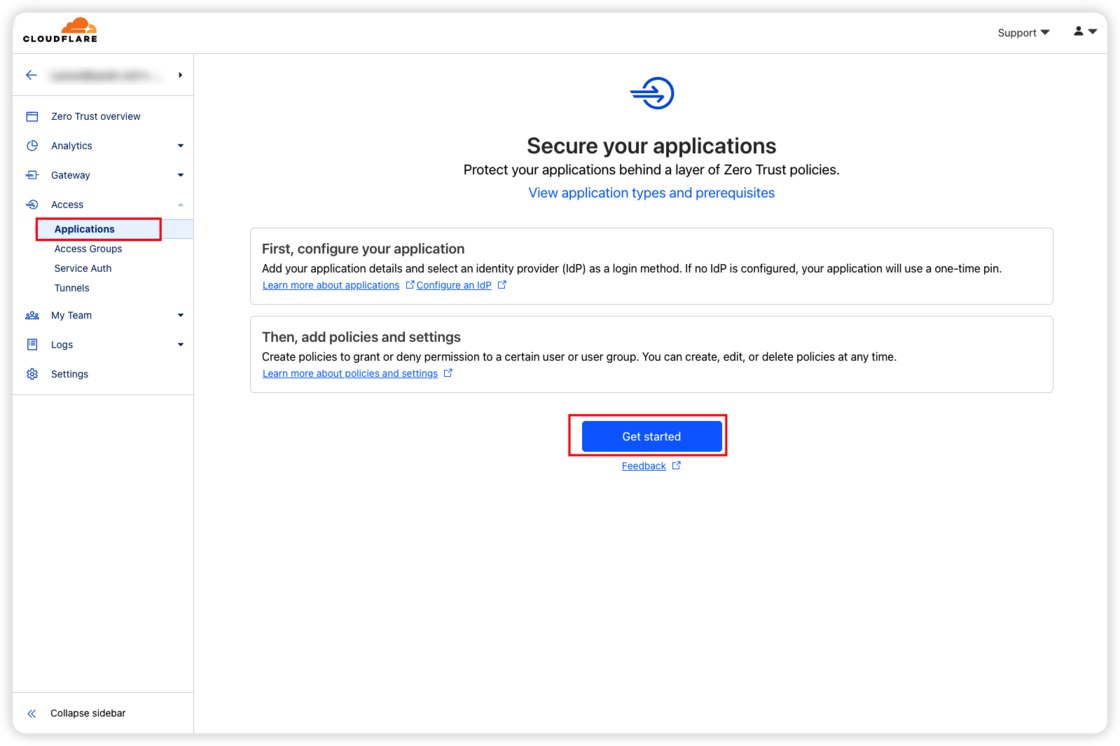
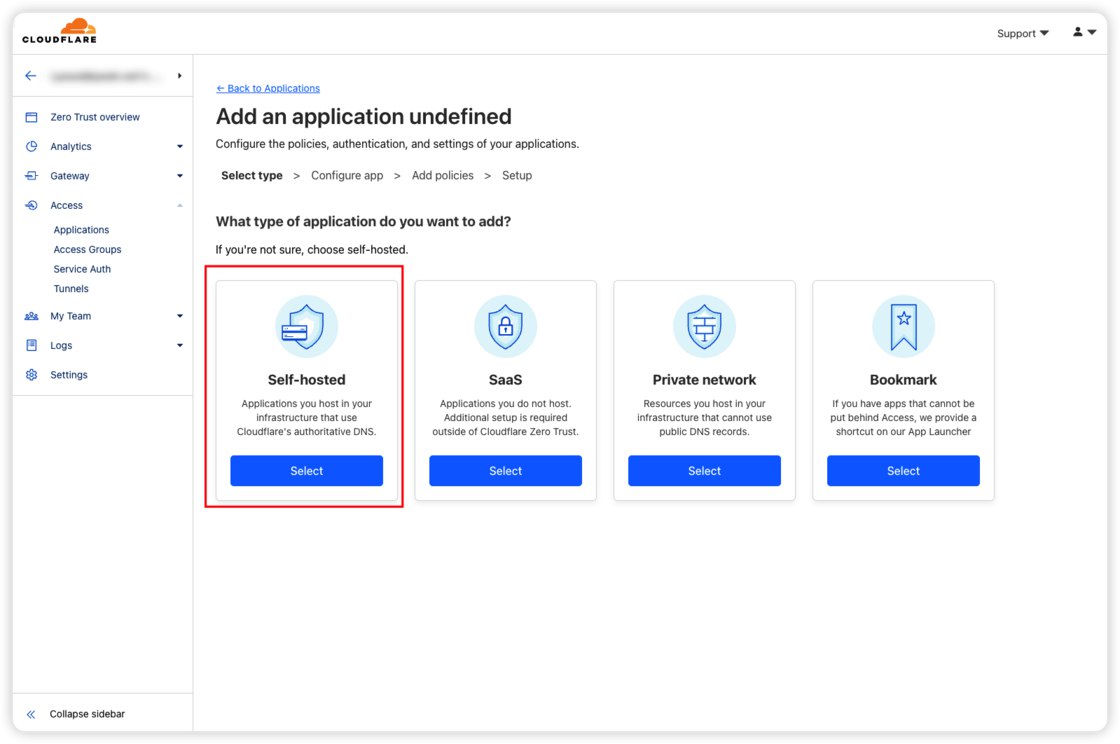
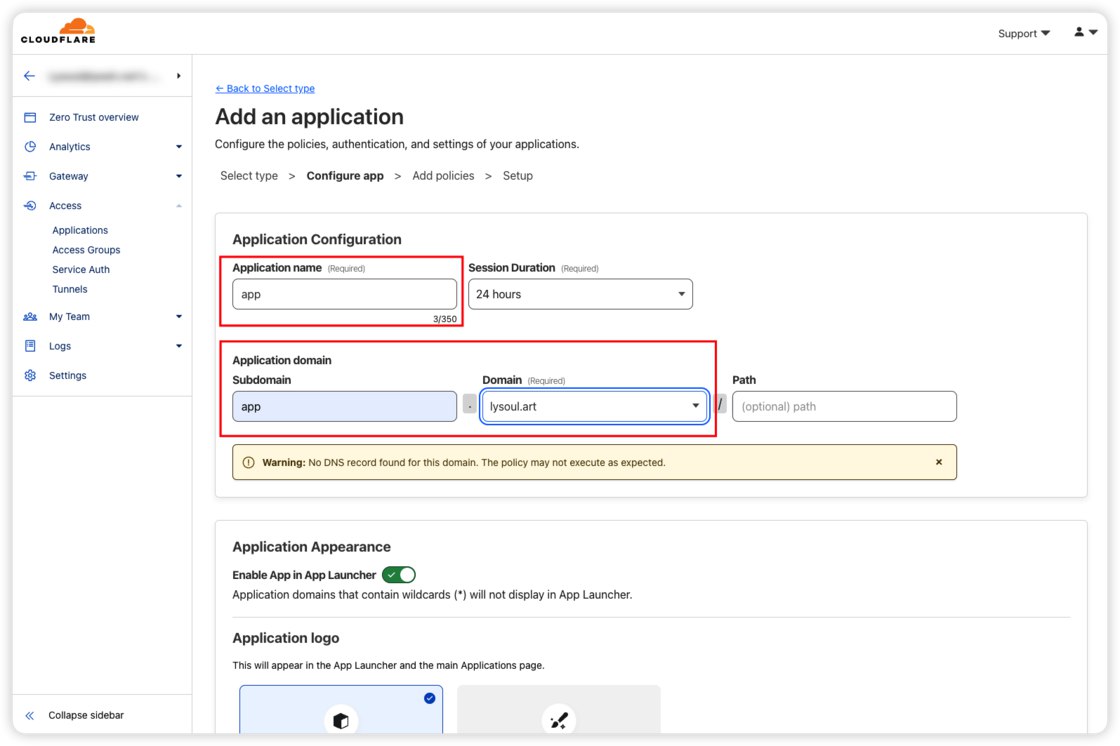
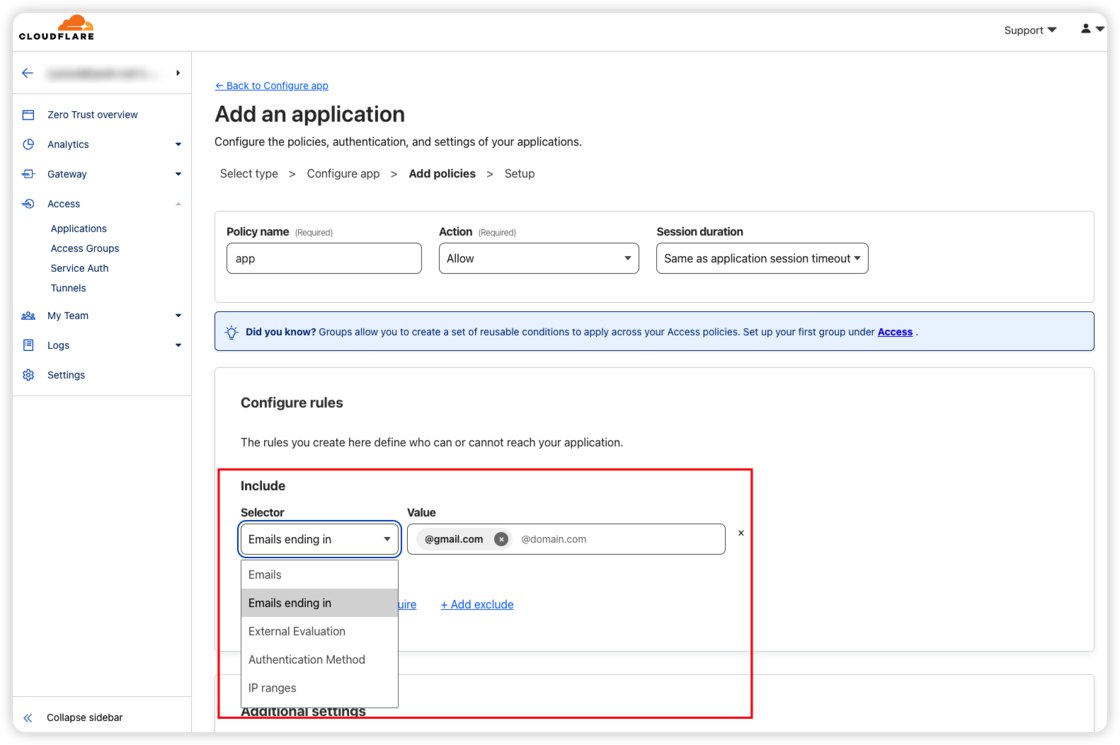
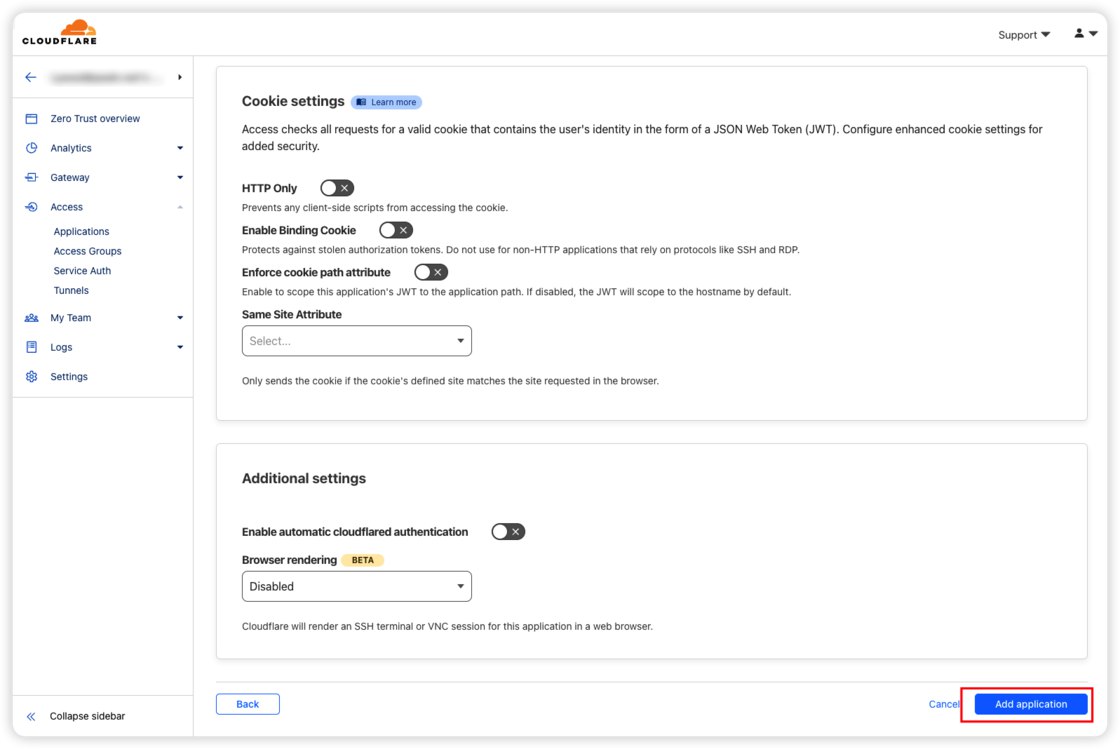
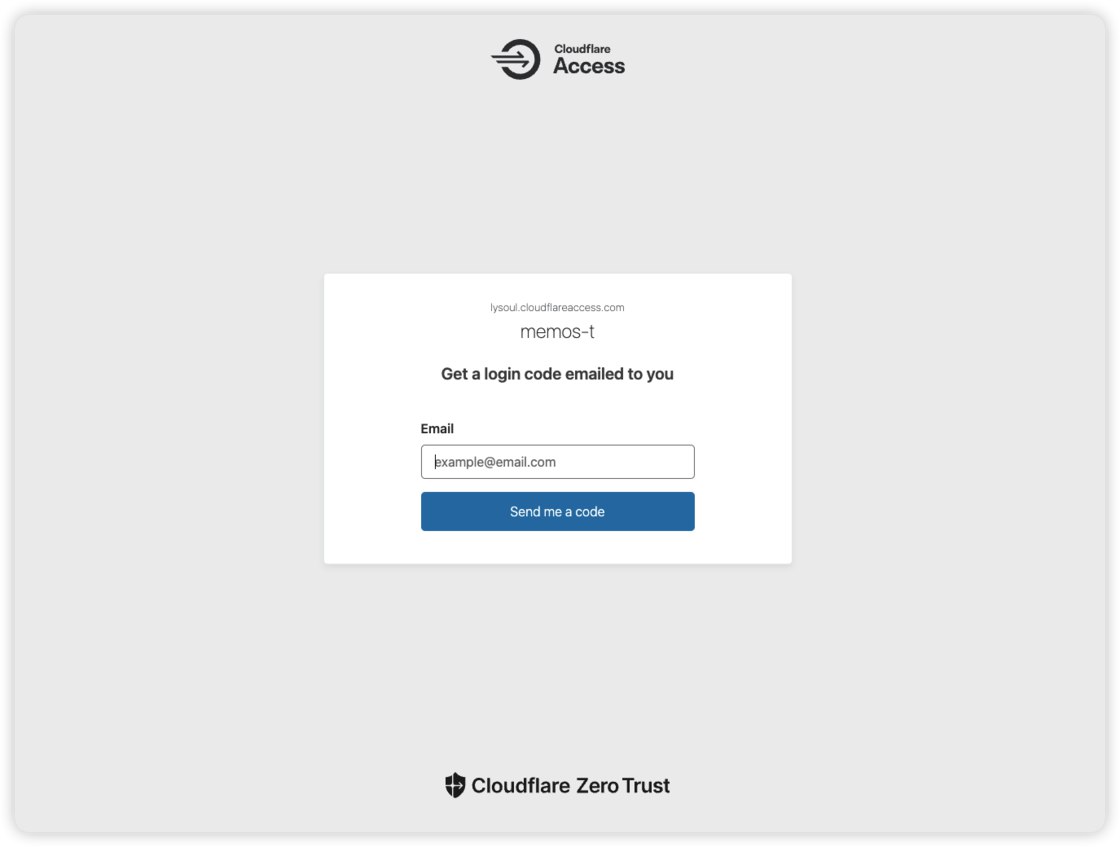
    <content type="html"><![CDATA[<h2 id="Tunnel可以做什么-1"><a href="#Tunnel可以做什么-1" class="headerlink" title="Tunnel可以做什么[^1]"></a>Tunnel可以做什么[^1]</h2><ul><li>将本地网络的服务暴露到公网，可以理解为内网穿透。 例如我们在本地服务器 192.168.1.1:3000 搭建了一个 Transmission 服务用于 BT 下载，我们只能在内网环境才能访问这个服务，但通过内网穿透技术，我们可以在任何广域网环境下访问该服务。相比 NPS 之类传统穿透服务，Tunnel 不需要公网云服务器，同时自带域名解析，无需 DDNS 和公网 IP。</li><li>将非常规端口服务转发到 80&#x2F;443 常规端口。 无论是使用公网 IP + DDNS 还是传统内网穿透服务，都免不了使用非常规端口进行访问，如果某些服务使用了复杂的重定向可能会导致 URL 中端口号丢失而引起不可控的问题，同时也不够优雅。</li><li>自动为你的域名提供 HTTPS 认证。</li><li>为你的服务提供额外保护认证。</li><li>最重要的是——免费。</li></ul><span id="more"></span><h2 id="Tunnel-工作原理"><a href="#Tunnel-工作原理" class="headerlink" title="Tunnel 工作原理"></a>Tunnel 工作原理</h2><p>Tunnel 通过在本地网络运行的一个 Cloudflare 守护程序，与 Cloudflare 云端通信，将云端请求数据转发到本地网络的 IP + 端口。</p><h2 id="前置条件"><a href="#前置条件" class="headerlink" title="前置条件"></a>前置条件</h2><ul><li>持有一个域名</li><li>将域名 DNS 解析托管到 CF</li><li>内网有一台本地服务器，用于运行本地与 cloudflare 通信的 cloudflared 程序</li><li>一张境内双币信用卡（仅用于添加付款方式，服务是免费的）</li></ul><h2 id="开始"><a href="#开始" class="headerlink" title="开始"></a>开始</h2><ol><li>打开 Cloudflare Zero Trust 工作台面板</li><li>创建 Cloudflare Zero Trust ，选择免费计划。需要提供付款方式，使用境内的双币卡即可<br><img src="https://www.xiaobaby.eu.org/file/AgACAgEAAyEGAASQfha-AAMGZ00VlYJ2XozF1YoY0mVouBsCDPgAAr2tMRuLQmlGQ8vnQYhUucoBAAMCAAN5AAM2BA.png"><br>填写team name，随意填写<br><img src="https://www.xiaobaby.eu.org/file/AgACAgEAAyEGAASQfha-AAMHZ00XqKgHXX2DTo8_k3_EWnuUD-EAAr6tMRuLQmlGJLof-WXvo0QBAAMCAAN5AAM2BA.png"><br>选择免费计划<br><img src="https://www.xiaobaby.eu.org/file/AgACAgEAAyEGAASQfha-AAMIZ00XwFZKrrqgfDmQJBKfNcDg-tQAAr-tMRuLQmlG0r1bmCxSmTABAAMCAAN5AAM2BA.png"><br>添加付款方式<br><img src="https://www.xiaobaby.eu.org/file/AgACAgEAAyEGAASQfha-AAMJZ00X3vWA2edPAZubWSSX4fktRXwAAsCtMRuLQmlGQe98_YTDnWYBAAMCAAN5AAM2BA.png"><br>填写信用卡信息（仅验证，不会扣款），完成配置</li><li>完成后，在 Access Tunnels 中，创建一个 Tunnel。<br><img src="https://www.xiaobaby.eu.org/file/AgACAgEAAyEGAASQfha-AAMKZ00X-a_vYvbPIWP72YKcEKEDD90AAsGtMRuLQmlG_YZrgERx-wcBAAMCAAN5AAM2BA.png"><br>创建 Tunnel</li><li>选择 Cloudflared 部署方式。<br>Tunnel 需要通过 Cloudflared 来建立云端与本地网络的通道，这里推荐选择 Docker 部署Cloudflared 守护进程以使用 Tunnel 功能。<br><img src="https://www.xiaobaby.eu.org/file/AgACAgEAAyEGAASQfha-AAMLZ00YGq7P59sjoCrvKB15M_Vp__0AAsKtMRuLQmlG51XY2lVPX9cBAAMCAAN5AAM2BA.png"><br>获取 Cloudflared 启动命令及 Token<br>点击复制按钮复制指令，在本地网络主机上运行命令。我们还可以加上<code>--name cloudflared -d --restart unless-stop</code>为Docker容器增加名称和后台运行。你可以使用下方我修改好命令来创建 Docker，注意替换你为自己的 Token（就是网页中—<code>-token</code>之后的长串字符）</li></ol><pre><code class="highlight plaintext">docker run --name cloudflared -d --restart unless-stop cloudflare/cloudflared:latest tunnel --no-autoupdate run --token &lt;YourToken&gt;</code></pre><ol start="5"><li>配置域名和转发URL<br>为你的域名配置一个子域名（Subdomain），Path 留空，URL 处填写内网服务的IP加端口号。注意 Type 处建议使用 HTTP，因为 Cloudflare 会自动为你提供 HTTPS，因此此处的转发目标可以是 HTTP 服务端口。<br><img src="https://www.xiaobaby.eu.org/file/AgACAgEAAyEGAASQfha-AAMMZ00YMwn2TdLRY1X6zy1jFi9oOUIAAsOtMRuLQmlG-bkW-EihkuUBAAMCAAN5AAM2BA.png"><br>配置内网目标 IP+端口</li></ol><h2 id="完成"><a href="#完成" class="headerlink" title="完成"></a>完成</h2><p>接着访问刚刚配置的三级域名，例如 <code>https://app.yourdomain.com</code>（是的，你没看错，是 https，cloudflare 已经自动为域名提供了 https 证书）就可以访问到内网的非公端口号服务了。一个 Tunnel 中可以添加多条三级域名来跳转到不同的内网服务，在 Tunnel 页面的 Public Hostname 中新增即可。</p><h2 id="为你的服务添加额外验证"><a href="#为你的服务添加额外验证" class="headerlink" title="为你的服务添加额外验证"></a>为你的服务添加额外验证</h2><p>如果你觉得这种直接暴露内网服务的方式有较高的安全风险，我们还可以使用 Application 功能为服务添加额外的安全验证。</p><ol><li>点击 Application - Get started。<br><img src="https://www.xiaobaby.eu.org/file/AgACAgEAAyEGAASQfha-AAMNZ00YTiMPS8dbBl1vAWtcsQ5sIEYAAsStMRuLQmlGLfzdRizExrIBAAMCAAN5AAM2BA.png"><br>创建 Application</li><li>选择 Self-hosted。<br><img src="https://www.xiaobaby.eu.org/file/AgACAgEAAyEGAASQfha-AAMOZ00YZV--pfSKFqqGWgV0YSEyoAADxa0xG4tCaUac_R6HWYapvAEAAwIAA3kAAzYE.png"><br>选择类型</li><li>填写配置，注意 Subdomain 和 Domain 需要使用刚刚创建的 Tunnel 服务相同的 Domain 配置。<br><img src="https://www.xiaobaby.eu.org/file/AgACAgEAAyEGAASQfha-AAMPZ00Ye6ngzL9E1DARAWYKbWtOajgAAsatMRuLQmlGMmXS6OYGAbkBAAMCAAN5AAM2BA.png"><br>配置三级域名</li><li>选择验证方式。填写 Policy name（任意）。在 Include 区域选择验证方式，示例图片中使用的是 Email 域名的方式，用户在访问该网络时需要使用指定的邮箱域名（如@gmail.com）验证，这种方式比较适合自定义域名的企业邮箱用户。另外你还可以指定特定完整邮箱地址、IP 地址范围等方式。<br><img src="https://www.xiaobaby.eu.org/file/AgACAgEAAyEGAASQfha-AAMQZ00YlNRpMQqM8SDTDEy0On7TeegAAsetMRuLQmlGH3p6ioIGsJEBAAMCAAN5AAM2BA.png"><br>选择验证方式</li><li>完成添加<br><img src="https://www.xiaobaby.eu.org/file/AgACAgEAAyEGAASQfha-AAMRZ00YsDtu8HYO0AL6rWu3awvWjNIAAsitMRuLQmlG1wONAAHAujurAQADAgADeQADNgQ.png"></li></ol><p>此时，访问 <a href="https://app.yourdomain.com/">https://app.yourdomain.com</a> 可以看到网站多了一个验证页面，使用刚刚设置的域名邮箱，接收验证码来访问。<br><img src="https://www.xiaobaby.eu.org/file/AgACAgEAAyEGAASQfha-AAMSZ00YxD7NPxLB28M2p_kjwh3WRyYAAsmtMRuLQmlGUWyiKRQ2_DsBAAMCAAN5AAM2BA.png"></p><h2 id="评价"><a href="#评价" class="headerlink" title="评价"></a>评价</h2><p>除了上述直接转发 http 服务之外，Tunnel 还支持 RDP、SSH 等协议的转发，玩法丰富，有待各位探索。作为一款免费的服务，简单的配置，低门槛使用条件，适合各位 Self-hosted 玩家尝试。不过要注意的是 Tunnel 在国内访问速度不快，并且有断流的情况，请酌情使用。</p>]]></content>
    
    
    <summary type="html">&lt;h2 id=&quot;Tunnel可以做什么-1&quot;&gt;&lt;a href=&quot;#Tunnel可以做什么-1&quot; class=&quot;headerlink&quot; title=&quot;Tunnel可以做什么[^1]&quot;&gt;&lt;/a&gt;Tunnel可以做什么[^1]&lt;/h2&gt;&lt;ul&gt;
&lt;li&gt;将本地网络的服务暴露到公网，可以理解为内网穿透。 例如我们在本地服务器 192.168.1.1:3000 搭建了一个 Transmission 服务用于 BT 下载，我们只能在内网环境才能访问这个服务，但通过内网穿透技术，我们可以在任何广域网环境下访问该服务。相比 NPS 之类传统穿透服务，Tunnel 不需要公网云服务器，同时自带域名解析，无需 DDNS 和公网 IP。&lt;/li&gt;
&lt;li&gt;将非常规端口服务转发到 80&amp;#x2F;443 常规端口。 无论是使用公网 IP + DDNS 还是传统内网穿透服务，都免不了使用非常规端口进行访问，如果某些服务使用了复杂的重定向可能会导致 URL 中端口号丢失而引起不可控的问题，同时也不够优雅。&lt;/li&gt;
&lt;li&gt;自动为你的域名提供 HTTPS 认证。&lt;/li&gt;
&lt;li&gt;为你的服务提供额外保护认证。&lt;/li&gt;
&lt;li&gt;最重要的是——免费。&lt;/li&gt;
&lt;/ul&gt;</summary>


    <category term="Linux" scheme="https://82885312.vercel.app/categories/Linux/"/>
    
    
    <category term="Cloudflare" scheme="https://82885312.vercel.app/tags/Cloudflare/"/>
    
  </entry>
  
  <entry>
    <title>使用WinSCP连接OneDrive</title>
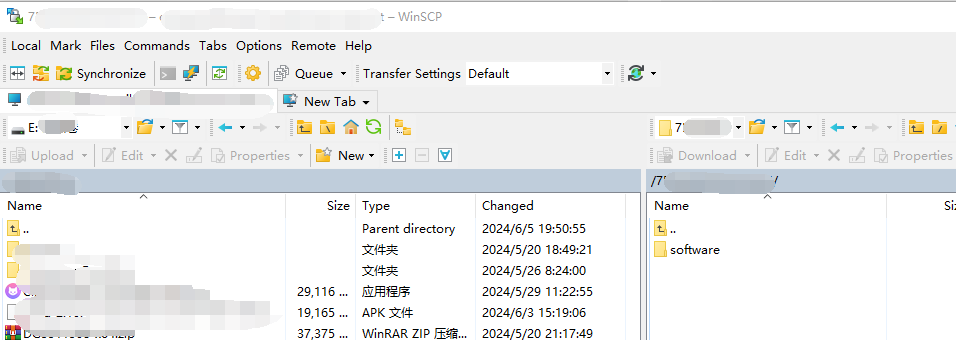
    <link href="https://82885312.vercel.app/2024/06/05/2024-06-05-winscp-webdav-onedrive/"/>
    <id>https://82885312.vercel.app/2024/06/05/2024-06-05-winscp-webdav-onedrive/</id>
    <published>2024-06-05T03:28:35.000Z</published>
    <updated>2026-04-20T05:17:44.780Z</updated>
    
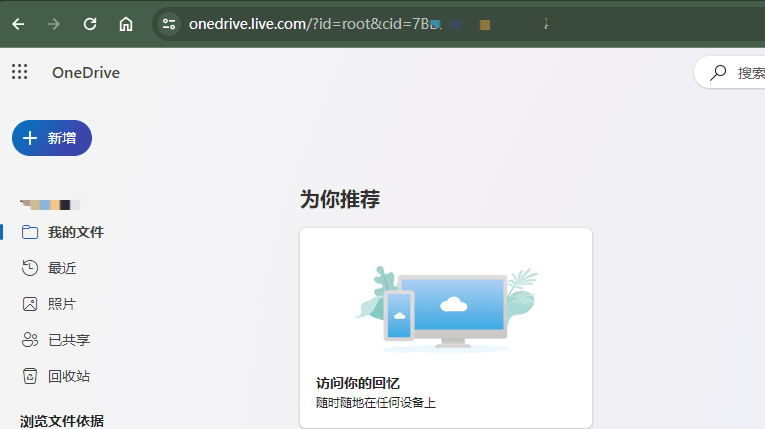
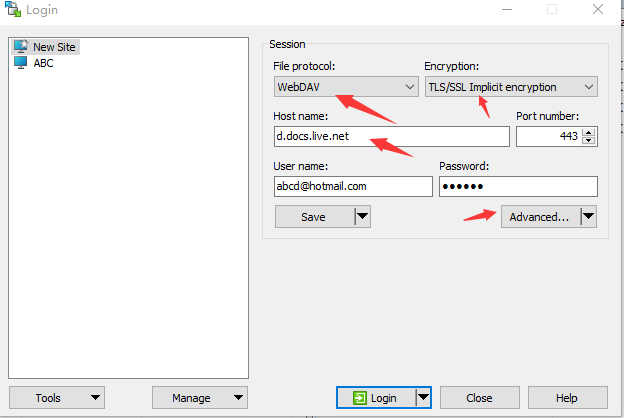
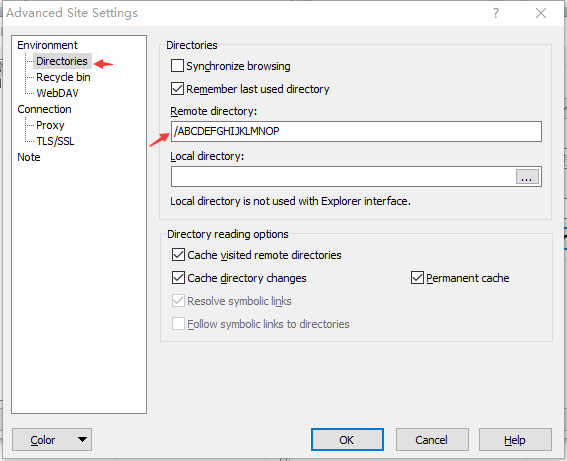
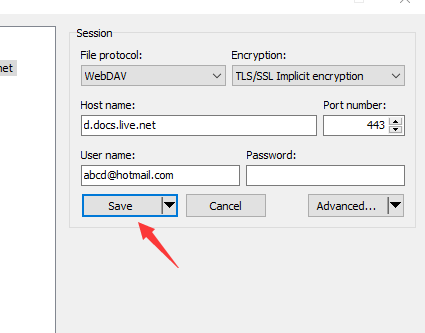
    <content type="html"><![CDATA[<p>使用WinSCP，基于WebDAV协议可以轻松地上传、管理、备份文件到OneDrive。</p><span id="more"></span><h1 id="准备工作"><a href="#准备工作" class="headerlink" title="准备工作"></a>准备工作</h1><h2 id="找到你的”OneDrive客户ID”"><a href="#找到你的”OneDrive客户ID”" class="headerlink" title="找到你的”OneDrive客户ID”"></a>找到你的”OneDrive客户ID”</h2><p>打开浏览器，登录OneDrive，登录以后，地址栏的地址类似如下：<br><a href="https://onedrive.live.com/?id=root&cid=ABCDEFGHIJKLMNOP">https://onedrive.live.com/?id=root&amp;cid=ABCDEFGHIJKLMNOP</a></p><p>这个<code>ABCDEFGHIJKLMNOP</code>就是你的客户ID，选中复制到粘贴板，我们一会要用。</p><p><img src="https://www.xiaobaby.eu.org/file/db9e4f9d84bd452be882d.png"></p><h1 id="WinSCP-配置"><a href="#WinSCP-配置" class="headerlink" title="WinSCP 配置"></a>WinSCP 配置</h1><p>启动WinSCP工具，在显示的登录对话框中，选择<code>WebDAV</code>，加密类型选择<code>TLS/SSL Implicit encryption</code>，主机名填写<code>d.docs.live.net</code>，用户名和密码填写你的OneDrive账号和密码。</p><p><em>注意：如果你的OneDrive账号启用了二次验证，需要去<a href="https://account.live.com/proofs/Manage/additional#AppPassword">创建app应用密码</a></em></p><p><img src="https://www.xiaobaby.eu.org/file/60a4d6b91155881f2c955.png"></p><p>接下来，点击<code>Advanced</code>按钮，在<code>Environment</code> &gt; <code>Directories</code>下面的<code>Remote Directory</code>中填写 <code>/ABCDEFGHIJKLMNOP</code></p><p><img src="https://www.xiaobaby.eu.org/file/cf52963068a48cf0fc6d6.png"></p><p>点击OK按钮确认，再次点击<code>Save</code>按钮保存设置。</p><p><img src="https://www.xiaobaby.eu.org/file/5e9e9ec360a2d9b33bfba.png"></p><h1 id="开始使用"><a href="#开始使用" class="headerlink" title="开始使用"></a>开始使用</h1><p>双击保存的会话名称，就可以连接了。</p><p><img src="https://www.xiaobaby.eu.org/file/147530184f0a90740c5d7.png"></p>]]></content>
    
    
    <summary type="html">&lt;p&gt;使用WinSCP，基于WebDAV协议可以轻松地上传、管理、备份文件到OneDrive。&lt;/p&gt;</summary>


    <category term="Windows" scheme="https://82885312.vercel.app/categories/Windows/"/>
    
    
    <category term="OneDrive" scheme="https://82885312.vercel.app/tags/OneDrive/"/>
    
  </entry>
  
  <entry>
    <title>PVE硬件直通之网卡直通</title>
    <link href="https://82885312.vercel.app/2024/05/19/2024-05-20-pve-network-passthrough/"/>
    <id>https://82885312.vercel.app/2024/05/19/2024-05-20-pve-network-passthrough/</id>
    <published>2024-05-19T17:28:35.000Z</published>
    <updated>2026-04-20T05:17:44.780Z</updated>
    
    <content type="html"><![CDATA[<p>硬件直通这块，因为设备不同，不能硬套如下步骤，具体要多查一下谷歌，不要人云亦云。因为我的网卡是由PCIE转接的四个I226-V网卡，按照PVE官方的步骤，打开IOMMU之后，分配了网卡，但是无法启动，后来终于从google上查到了结果。</p><p>以下硬件直通步骤仅针对PVE 8.0以上版本。</p><span id="more"></span><h2 id="打开IOMMU"><a href="#打开IOMMU" class="headerlink" title="打开IOMMU"></a>打开IOMMU</h2><pre><code class="highlight plaintext">nano /etc/default/grub</code></pre><p>英特尔CPU使用下面的引导参数:</p><pre><code class="highlight plaintext">GRUB_CMDLINE_LINUX_DEFAULT=&quot;quiet intel_iommu=on&quot;</code></pre><p>AMD CPU使用下面的引导参数:</p><pre><code class="highlight plaintext">GRUB_CMDLINE_LINUX_DEFAULT=&quot;quiet amd_iommu=on&quot;</code></pre><p>特别注意，如果你的网卡是PCIE转接的网卡，请多增加一个参数：<br>我的主机CPU是J4125,参数如下</p><pre><code class="highlight plaintext">GRUB_CMDLINE_LINUX_DEFAULT=&quot;quiet intel_iommu=on pcie_port_pm=off&quot;</code></pre><p>之后，更新grub配置文件</p><pre><code class="highlight plaintext">update-grub</code></pre><ol start="2"><li>增加内核模块</li></ol><pre><code class="highlight plaintext">nano /etc/modules</code></pre><p>在<code>modules</code>文件中增加如下内容:</p><pre><code class="highlight plaintext">vfiovfio_iommu_type1vfio_pci</code></pre><p><strong>pve8.0以上版本不需要vfio_virqfd这个模块，因为模块目录压根就没有！！！</strong></p><ol start="3"><li>更新 initramfs 归档文件</li></ol><pre><code class="highlight plaintext">update-initramfs -k -u all</code></pre><ol start="4"><li>重启pve</li></ol><pre><code class="highlight plaintext">reboot</code></pre><ol start="5"><li>验证IOMMU是否开启</li></ol><pre><code class="highlight plaintext">dmesg | grep -e DMAR -e IOMMU</code></pre><p>会看到 </p><pre><code class="highlight plaintext">DMAR: IOMMU ENABLED</code></pre><ol start="6"><li>可以新增虚拟机了，分配PCI设备，开机！</li></ol><p>USB硬盘的直通，PVE确实很方便，直接qm disk set就可以了。</p><ol start="7"><li><p>如果你觉得local-lvm 和 lvm 两个分区容易造成空间浪费，可以合并成一个</p><p> 1、备份虚拟机<br> 2、删除虚拟机<br> 3、删除local-lvm<br> 命令：lvremove pve&#x2F;data<br> 4、把local-lvm空间分配给Local<br> 命令：<br> lvextend -l +100%FREE -r pve&#x2F;root<br> resize2fs &#x2F;dev&#x2F;mapper&#x2F;pve-root<br> 5、删除local-lvm<br> 网页登陆，数据中心-存储-删除local-lvm<br> 6、编辑local，内容里添加 磁盘映像和容器，保存<br> 7、恢复虚拟机</p></li></ol>]]></content>
    
    
    <summary type="html">&lt;p&gt;硬件直通这块，因为设备不同，不能硬套如下步骤，具体要多查一下谷歌，不要人云亦云。因为我的网卡是由PCIE转接的四个I226-V网卡，按照PVE官方的步骤，打开IOMMU之后，分配了网卡，但是无法启动，后来终于从google上查到了结果。&lt;/p&gt;
&lt;p&gt;以下硬件直通步骤仅针对PVE 8.0以上版本。&lt;/p&gt;</summary>


    <category term="Linux" scheme="https://82885312.vercel.app/categories/Linux/"/>
    
    
  </entry>
  
  <entry>
    <title>ESXI安装群晖后的一些设置</title>
    <link href="https://82885312.vercel.app/2024/05/19/2024-05-20-dsm-installation-tips/"/>
    <id>https://82885312.vercel.app/2024/05/19/2024-05-20-dsm-installation-tips/</id>
    <published>2024-05-19T17:24:35.000Z</published>
    <updated>2026-04-20T05:17:44.780Z</updated>
    
    <content type="html"><![CDATA[<ol><li>USB硬盘直通后，按照HDD进行挂载。<br>需要重启群晖至bootloader，修改synoinfo,修改如下两个配置项目</li></ol><pre><code class="highlight plaintext">internalportcfg=&quot;0xffffffff&quot;usbportcfg=&quot;0x0000&quot;</code></pre><span id="more"></span><ol start="2"><li>群晖Photo安装后，无法显示HEVC，HEIF文件，需要安装<code>Advanced Media Extensions</code>，安装后还需要进行patch，才能显示对应文件的缩略图。</li></ol><pre><code class="highlight plaintext"># DSM7.1 AME版本3.0.1-2004curl http://code.imnks.com/ame3patch/ame71-2004.py | python# DSM7.2 AME版本3.1.0-3005curl http://code.imnks.com/ame3patch/ame72-3005.py | python</code></pre><p>patch以后，上传的照片就可以自动显示缩略图了。<br>3. Synology Photos人脸识别补丁(仅支持Synology Photos 1.6.x版本)<br>1、先停用Synology Photos套件<br>2、SSH连接群晖执行修复</p><pre><code class="highlight plaintext">wget http://code.imnks.com/face/PatchELFSharpchmod +x PatchELFSharp# support face and concept./PatchELFSharp &quot;/var/packages/SynologyPhotos/target/usr/lib/libsynophoto-plugin-platform.so.1.0&quot; &quot;_ZN9synophoto6plugin8platform20IsSupportedIENetworkEv&quot; &quot;B8 00 00 00 00 C3&quot;# force to support concept./PatchELFSharp &quot;/var/packages/SynologyPhotos/target/usr/lib/libsynophoto-plugin-platform.so.1.0&quot; &quot;_ZN9synophoto6plugin8platform18IsSupportedConceptEv&quot; &quot;B8 01 00 00 00 C3&quot;# force no Gpu./PatchELFSharp &quot;/var/packages/SynologyPhotos/target/usr/lib/libsynophoto-plugin-platform.so.1.0&quot; &quot;_ZN9synophoto6plugin8platform23IsSupportedIENetworkGpuEv&quot; &quot;B8 00 00 00 00 C3&quot;</code></pre><p>3、重建索引</p>]]></content>
    
    
    <summary type="html">&lt;ol&gt;
&lt;li&gt;USB硬盘直通后，按照HDD进行挂载。&lt;br&gt;需要重启群晖至bootloader，修改synoinfo,修改如下两个配置项目&lt;/li&gt;
&lt;/ol&gt;
&lt;pre&gt;&lt;code class=&quot;highlight plaintext&quot;&gt;internalportcfg=&amp;quot;0xffffffff&amp;quot;
usbportcfg=&amp;quot;0x0000&amp;quot;&lt;/code&gt;&lt;/pre&gt;</summary>


    <category term="Linux" scheme="https://82885312.vercel.app/categories/Linux/"/>
    
    
    <category term="云存储" scheme="https://82885312.vercel.app/tags/%E4%BA%91%E5%AD%98%E5%82%A8/"/>
    
  </entry>
  
  <entry>
    <title>新域名，新起点</title>
    <link href="https://82885312.vercel.app/2024/01/27/2024-01-28-new-domain-new-start/"/>
    <id>https://82885312.vercel.app/2024/01/27/2024-01-28-new-domain-new-start/</id>
    <published>2024-01-27T17:24:35.000Z</published>
    <updated>2026-04-20T05:17:44.780Z</updated>
    
    <content type="html"><![CDATA[<p>2024年了，一切都要发生变化了，工作了十二年的岗位也要变了，和以前的自己做一个割舍。</p><p>也许，这条路并不平坦。</p><p>新的域名 ikrazel.com</p>]]></content>


    <summary type="html">&lt;p&gt;2024年了，一切都要发生变化了，工作了十二年的岗位也要变了，和以前的自己做一个割舍。&lt;/p&gt;
&lt;p&gt;也许，这条路并不平坦。&lt;/p&gt;
&lt;p&gt;新的域名 ikrazel.com&lt;/p&gt;
</summary>


    <category term="我的世界" scheme="https://82885312.vercel.app/categories/%E6%88%91%E7%9A%84%E4%B8%96%E7%95%8C/"/>
    
    
  </entry>
  
  <entry>
    <title>openwrt使用openssh</title>
    <link href="https://82885312.vercel.app/2024/01/16/2024-01-16-use-openssh-in-openwrt/"/>
    <id>https://82885312.vercel.app/2024/01/16/2024-01-16-use-openssh-in-openwrt/</id>
    <published>2024-01-16T13:24:35.000Z</published>
    <updated>2026-04-20T05:17:44.780Z</updated>
    
    <content type="html"><![CDATA[<p>其实完全可以使用openssh替换掉openwrt中的dropbear，毕竟咱们用的软路由不会在意那一点内存的。</p><p>我使用的是immortalwrt，可以根据自己使用的版本进行更换。</p><span id="more"></span><p>首先，修改root密码</p><pre><code class="highlight plaintext">passwd</code></pre><p>其次，修改dropbear的监听端口，避免与openssh监听端口冲突，其次呢，以防万一openssh启动不了，不至于进不了控制台。</p><pre><code class="highlight plaintext">uci set dropbear.@dropbear[0].Port=2222uci commit dropbear/etc/init.d/dropbear restart</code></pre><p>测试一下2222端口是否能够登录成功，也可以通过终端工具再开一个窗口。</p><pre><code class="highlight plaintext">ssh -p 2222 root@192.168.1.1</code></pre><p>安装openssh</p><pre><code class="highlight plaintext">opkg updateopkg install openssh-server openssh-client openssh-sftp-server</code></pre><p>修改ssh配置文件，允许root登录</p><pre><code class="highlight plaintext">vi /etc/ssh/sshd_config</code></pre><p>找到<code>#PermitRootLogin without-password</code>这行，替换为<code>PermitRootLogin yes</code>,之后保存退出。</p><p>然后设置开机自启并启动服务</p><pre><code class="highlight plaintext">/etc/init.d/sshd enable/etc/init.d/sshd start</code></pre><p>最后用终端程序，从22端口连接路由器吧，应该没有问题了，可以连上了。</p><p>接下来就可以停用dropbear，甚至于删除它。</p><pre><code class="highlight plaintext">/etc/init.d/dropbear disable/etc/init.d/dropbear stopopkg remove dropbear</code></pre>]]></content>
    
    
    <summary type="html">&lt;p&gt;其实完全可以使用openssh替换掉openwrt中的dropbear，毕竟咱们用的软路由不会在意那一点内存的。&lt;/p&gt;
&lt;p&gt;我使用的是immortalwrt，可以根据自己使用的版本进行更换。&lt;/p&gt;</summary>


    <category term="Linux" scheme="https://82885312.vercel.app/categories/Linux/"/>
    
    
    <category term="OpenWRT" scheme="https://82885312.vercel.app/tags/OpenWRT/"/>
    
  </entry>
  
  <entry>
    <title>frp启用TLS连接，避免被截获</title>
    <link href="https://82885312.vercel.app/2022/08/28/2022-08-28-frp-qi-yong-tls-lian-jie-bi-mian-bei-jie-huo/"/>
    <id>https://82885312.vercel.app/2022/08/28/2022-08-28-frp-qi-yong-tls-lian-jie-bi-mian-bei-jie-huo/</id>
    <published>2022-08-28T08:24:35.000Z</published>
    <updated>2026-04-20T05:17:44.780Z</updated>
    
    <content type="html"><![CDATA[<p>frp自版本0.25.0后，就支持 frpc 和 frps 之间使用TLS协议。<br>为了端口复用，frp 会发送第一个字节“0x17”以创建 TLS 连接。<br>在<code>[common]</code>配置小节增加<code>tls_enable = true</code>后，就可以启用该特性。<br>若强制frps只接受TLS连接，则需要在<code>[common]</code>小节配置<code>tls_only = true</code>。</p><p>You will need <strong>a root CA cert</strong> and <strong>at least one SSL&#x2F;TLS certificate</strong>. It <strong>can</strong> be self-signed or regular (such as Let’s Encrypt or another SSL&#x2F;TLS certificate provider).</p><p>If you using <code>frp</code> via IP address and not hostname, make sure to set the appropriate IP address in the Subject Alternative Name (SAN) area when generating SSL&#x2F;TLS Certificates.</p><p>需要注意的点：</p><p>创建frps证书时，注意vps_ip和vps_domain两个参数，必须是真实的VPSip和域名。</p><span id="more"></span><h2 id="准备openssl配置文件"><a href="#准备openssl配置文件" class="headerlink" title="准备openssl配置文件"></a>准备openssl配置文件</h2><p>一般情况下，该配置文件默认位置是<code>/etc/pki/tls/openssl.cnf</code>，如果找不到该文件可以使用如下配置文件。</p><pre><code class="highlight bash"><span class="built_in">cat</span> &gt; my-openssl.cnf &lt;&lt; <span class="string">EOF</span><span class="string">[ ca ]</span><span class="string">default_ca = CA_default</span><span class="string">[ CA_default ]</span><span class="string">x509_extensions = usr_cert</span><span class="string">[ req ]</span><span class="string">default_bits        = 2048</span><span class="string">default_md          = sha256</span><span class="string">default_keyfile     = privkey.pem</span><span class="string">distinguished_name  = req_distinguished_name</span><span class="string">attributes          = req_attributes</span><span class="string">x509_extensions     = v3_ca</span><span class="string">string_mask         = utf8only</span><span class="string">[ req_distinguished_name ]</span><span class="string">[ req_attributes ]</span><span class="string">[ usr_cert ]</span><span class="string">basicConstraints       = CA:FALSE</span><span class="string">nsComment              = &quot;OpenSSL Generated Certificate&quot;</span><span class="string">subjectKeyIdentifier   = hash</span><span class="string">authorityKeyIdentifier = keyid,issuer</span><span class="string">[ v3_ca ]</span><span class="string">subjectKeyIdentifier   = hash</span><span class="string">authorityKeyIdentifier = keyid:always,issuer</span><span class="string">basicConstraints       = CA:true</span><span class="string">EOF</span></code></pre><h2 id="创建ca证书"><a href="#创建ca证书" class="headerlink" title="创建ca证书"></a>创建ca证书</h2><pre><code class="highlight bash">openssl genrsa -out ca.key 2048openssl req -x509 -new -nodes -key ca.key -subj <span class="string">&quot;/CN=example.ca.com&quot;</span> -days 5000 -out ca.crt</code></pre><h2 id="创建frps服务端证书"><a href="#创建frps服务端证书" class="headerlink" title="创建frps服务端证书"></a>创建frps服务端证书</h2><pre><code class="highlight bash">openssl genrsa -out server.key 2048openssl req -new -sha256 -key server.key \    -subj <span class="string">&quot;/C=XX/ST=DEFAULT/L=DEFAULT/O=DEFAULT/CN=server.com&quot;</span> \    -reqexts SAN \    -config &lt;(<span class="built_in">cat</span> my-openssl.cnf &lt;(<span class="built_in">printf</span> <span class="string">&quot;\n[SAN]\nsubjectAltName=DNS:localhost,IP:VPS_IP,DNS:vps_domain&quot;</span>)) \    -out server.csropenssl x509 -req -days 365 -sha256 \-<span class="keyword">in</span> server.csr -CA ca.crt -CAkey ca.key -CAcreateserial \-extfile &lt;(<span class="built_in">printf</span> <span class="string">&quot;subjectAltName=DNS:localhost,IP:VPS_IP,DNS:vps_domain&quot;</span>) \-out server.crt</code></pre><h2 id="创建frpc客户端证书"><a href="#创建frpc客户端证书" class="headerlink" title="创建frpc客户端证书"></a>创建frpc客户端证书</h2><pre><code class="highlight bash">openssl genrsa -out client.key 2048openssl req -new -sha256 -key client.key \    -subj <span class="string">&quot;/C=XX/ST=DEFAULT/L=DEFAULT/O=DEFAULT/CN=client.com&quot;</span> \    -reqexts SAN \    -config &lt;(<span class="built_in">cat</span> my-openssl.cnf &lt;(<span class="built_in">printf</span> <span class="string">&quot;\n[SAN]\nsubjectAltName=DNS:client.com,DNS:example.client.com&quot;</span>)) \    -out client.csropenssl x509 -req -days 365 -sha256 \    -<span class="keyword">in</span> client.csr -CA ca.crt -CAkey ca.key -CAcreateserial \-extfile &lt;(<span class="built_in">printf</span> <span class="string">&quot;subjectAltName=DNS:client.com,DNS:example.client.com&quot;</span>) \-out client.crt</code></pre><h2 id="更新ca证书"><a href="#更新ca证书" class="headerlink" title="更新ca证书"></a>更新ca证书</h2><p><strong>Linux</strong></p><pre><code class="highlight bash"><span class="built_in">cp</span> ca.crt /usr/local/share/ca-certificatesupdate-ca-certificates</code></pre><p><strong>Windows</strong><br>将ca证书导入受信任的根证书机构即可。</p><h2 id="frps-服务端配置文件样例"><a href="#frps-服务端配置文件样例" class="headerlink" title="frps 服务端配置文件样例"></a>frps 服务端配置文件样例</h2><pre><code class="highlight ini"><span class="section">[common]</span><span class="attr">bind_addr</span> = <span class="number">0.0</span>.<span class="number">0.0</span><span class="attr">bind_port</span> = <span class="number">7000</span><span class="attr">log_level</span> = info<span class="attr">log_max_days</span> = <span class="number">3</span><span class="attr">log_file</span> = /var/log/frp/frp.log<span class="attr">authentication_method</span>=token<span class="attr">token</span>=<span class="number">123456789</span><span class="attr">max_pool_count</span> = <span class="number">2000</span><span class="attr">allow_ports</span> = <span class="number">2000</span>-<span class="number">50000</span><span class="attr">tls_only</span> = <span class="literal">true</span><span class="attr">tls_cert_file</span> = /usr/local/frp/server.crt<span class="attr">tls_key_file</span> = /usr/local/frp/server.key<span class="attr">tls_trusted_ca_file</span> = /usr/local/frp/ca.crt</code></pre><p>frpc客户端配置文件样例</p><pre><code class="highlight ini"><span class="section">[common]</span><span class="attr">server_addr</span>=vps_ip<span class="attr">server_port</span>=vps_frps_端口<span class="attr">protocol</span>=tcp<span class="attr">token</span>=<span class="number">123456789</span><span class="attr">log_file</span> = frpc.log<span class="attr">pool_count</span> = <span class="number">500</span><span class="attr">tls_enable</span> = <span class="literal">true</span><span class="attr">tls_cert_file</span> = <span class="string">&quot;D:\ProgramFiles\frp\tls\xzcu.crt&quot;</span><span class="attr">tls_key_file</span> = <span class="string">&quot;D:\ProgramFiles\frp\tls\xzcu.key&quot;</span><span class="attr">tls_trusted_ca_file</span> = <span class="string">&quot;D:\ProgramFiles\frp\tls\ca.crt&quot;</span><span class="section">[tcpsrv]</span><span class="attr">type</span>=tcp<span class="attr">local_ip</span> = <span class="number">127.0</span>.<span class="number">0.1</span><span class="attr">local_port</span> = <span class="number">8899</span><span class="attr">remote_port</span>= <span class="number">12345</span><span class="attr">use_compression</span> = <span class="literal">true</span></code></pre>]]></content>
    
    
    <summary type="html">&lt;p&gt;frp自版本0.25.0后，就支持 frpc 和 frps 之间使用TLS协议。&lt;br&gt;为了端口复用，frp 会发送第一个字节“0x17”以创建 TLS 连接。&lt;br&gt;在&lt;code&gt;[common]&lt;/code&gt;配置小节增加&lt;code&gt;tls_enable = true&lt;/code&gt;后，就可以启用该特性。&lt;br&gt;若强制frps只接受TLS连接，则需要在&lt;code&gt;[common]&lt;/code&gt;小节配置&lt;code&gt;tls_only = true&lt;/code&gt;。&lt;/p&gt;
&lt;p&gt;You will need &lt;strong&gt;a root CA cert&lt;/strong&gt; and &lt;strong&gt;at least one SSL&amp;#x2F;TLS certificate&lt;/strong&gt;. It &lt;strong&gt;can&lt;/strong&gt; be self-signed or regular (such as Let’s Encrypt or another SSL&amp;#x2F;TLS certificate provider).&lt;/p&gt;
&lt;p&gt;If you using &lt;code&gt;frp&lt;/code&gt; via IP address and not hostname, make sure to set the appropriate IP address in the Subject Alternative Name (SAN) area when generating SSL&amp;#x2F;TLS Certificates.&lt;/p&gt;
&lt;p&gt;需要注意的点：&lt;/p&gt;
&lt;p&gt;创建frps证书时，注意vps_ip和vps_domain两个参数，必须是真实的VPSip和域名。&lt;/p&gt;</summary>


    <category term="Linux" scheme="https://82885312.vercel.app/categories/Linux/"/>
    
    
    <category term="frp" scheme="https://82885312.vercel.app/tags/frp/"/>
    
  </entry>
  
  <entry>
    <title>BuyPass 免费域名 SSL 证书ACME API申请方法</title>
    <link href="https://82885312.vercel.app/2022/08/01/2022-08-01-buypass-free-ssl-by-acme-api/"/>
    <id>https://82885312.vercel.app/2022/08/01/2022-08-01-buypass-free-ssl-by-acme-api/</id>
    <published>2022-08-01T08:24:35.000Z</published>
    <updated>2026-04-20T05:17:44.780Z</updated>
    
    <content type="html"><![CDATA[<p>BuyPass 是挪威的一家 CA 机构，提供数字证书、安全认证产品等多种服务。目前 BuyPass 提供了类似 Let’s Encrypt 的基于 ACME&#x2F;Certbot 的证书自动签发服务 - BuyPass GO Free SSL，免费！</p><p>与 Let’s Encrypt 主要的不同点在于 BuyPass 证书每次签发有效期是 <strong>180 天</strong>（ Let’s Encrypt 是 90 天）。另外 BuyPass 不支持签发泛域名证书，但支持多域名。</p><p>由于目前 Let’s Encrypt OCSP 存在问题（ocsp.int-x3.letsencrypt.org 被干扰），严重拖慢网站速度，因此可以考虑替换为 BuyPass。</p><span id="more"></span><h2 id="利用-ACME-申请"><a href="#利用-ACME-申请" class="headerlink" title="利用 ACME 申请"></a>利用 ACME 申请</h2><h3 id="下载-ACME"><a href="#下载-ACME" class="headerlink" title="下载 ACME"></a>下载 ACME</h3><pre><code class="highlight plaintext">curl https://get.acme.sh | bash</code></pre><h3 id="注册账号"><a href="#注册账号" class="headerlink" title="注册账号"></a>注册账号</h3><pre><code class="highlight plaintext">./acme.sh --server https://api.buypass.com/acme/directory --register-account -m &#x27;YOUR_EMAIL&#x27;</code></pre><h3 id="申请证书"><a href="#申请证书" class="headerlink" title="申请证书"></a>申请证书</h3><p>可以选择手动 DNS 验证：</p><pre><code class="highlight plaintext">./acme.sh --server https://api.buypass.com/acme/directory --issue -d vircloud.net -d www.vircloud.net --dns --yes-I-know-dns-manual-mode-enough-go-ahead-please//添加完 DNS 验证后执行./acme.sh --server https://api.buypass.com/acme/directory --renew -d vircloud.net -d www.vircloud.net --dns --yes-I-know-dns-manual-mode-enough-go-ahead-please</code></pre><p>也可以选择自动 DNS 验证（以 CloudFlare 为例）：[关于这部分的信息，可以参与<a href="https://github.com/acmesh-official/acme.sh/wiki/dnsapi">DNSAPI</a>]</p><pre><code class="highlight plaintext">export CF_Key=&quot;****&quot;   #填写 CloudFlare 的 Global API Keyexport CF_Email=&quot;root@example.com&quot; #填写 CloudFlare 注册邮箱./acme.sh --server https://api.buypass.com/acme/directory --issue -d vircloud.net -d www.vircloud.net --dns dns_cf</code></pre><p>或者 HTML 验证：</p><pre><code class="highlight plaintext">./acme.sh --server https://api.buypass.com/acme/directory --issue -d vircloud.net -d www.vircloud.net --webroot  /var/www/example.com/public_html/</code></pre><h3 id="吊销证书"><a href="#吊销证书" class="headerlink" title="吊销证书"></a>吊销证书</h3><p>BuyPass 支持手动吊销证书，命令如下：</p><pre><code class="highlight plaintext">acme.sh --revoke -d vircloud.net -d www.vircloud.net --server &#x27;https://api.buypass.com/acme/directory&#x27;</code></pre><h2 id="Certbot申请"><a href="#Certbot申请" class="headerlink" title="Certbot申请"></a>Certbot申请</h2><h3 id="certbot-安装"><a href="#certbot-安装" class="headerlink" title="certbot 安装"></a>certbot 安装</h3><pre><code class="highlight plaintext">apt install certbot</code></pre><h3 id="注册账号-1"><a href="#注册账号-1" class="headerlink" title="注册账号"></a>注册账号</h3><pre><code class="highlight plaintext">certbot register -m &#x27;YOUR_EMAIL&#x27; --agree-tos --server &#x27;https://api.buypass.com/acme/directory&#x27;</code></pre><h3 id="申请证书-1"><a href="#申请证书-1" class="headerlink" title="申请证书"></a>申请证书</h3><p>可以选择DNS验证</p><pre><code class="highlight plaintext">certbot certonly --standalone --email &#x27;YOUR_EMAIL&#x27; -d vircloud.net -d www.vircloud.net --server &#x27;https://api.buypass.com/acme/directory&#x27;</code></pre><p>也可以选择网页HTML验证</p><pre><code class="highlight plaintext">certbot certonly --webroot -w /var/www/example.com/public_html/ -d vircloud.net -d www.vircloud.net --server &#x27;https://api.buypass.com/acme/directory&#x27;</code></pre><p>然后根据提示，到对应的目录就可以找到证书。</p><h3 id="自动续签"><a href="#自动续签" class="headerlink" title="自动续签"></a>自动续签</h3><p>如果申请证书时选择了 HTML 验证，那么就可以实现自动续签。</p><p>手动执行续签：</p><pre><code class="highlight plaintext">certbot renew</code></pre><p>计划任务续签</p><pre><code class="highlight plaintext">crontab -e30 */12 * * * /usr/bin/certbot renew -n -q &gt;&gt; /var/log/cerbot-renew.log</code></pre>]]></content>
    
    
    <summary type="html">&lt;p&gt;BuyPass 是挪威的一家 CA 机构，提供数字证书、安全认证产品等多种服务。目前 BuyPass 提供了类似 Let’s Encrypt 的基于 ACME&amp;#x2F;Certbot 的证书自动签发服务 - BuyPass GO Free SSL，免费！&lt;/p&gt;
&lt;p&gt;与 Let’s Encrypt 主要的不同点在于 BuyPass 证书每次签发有效期是 &lt;strong&gt;180 天&lt;/strong&gt;（ Let’s Encrypt 是 90 天）。另外 BuyPass 不支持签发泛域名证书，但支持多域名。&lt;/p&gt;
&lt;p&gt;由于目前 Let’s Encrypt OCSP 存在问题（ocsp.int-x3.letsencrypt.org 被干扰），严重拖慢网站速度，因此可以考虑替换为 BuyPass。&lt;/p&gt;</summary>


    <category term="Linux" scheme="https://82885312.vercel.app/categories/Linux/"/>
    
    
    <category term="Let&#39;s Encrypt" scheme="https://82885312.vercel.app/tags/Let-s-Encrypt/"/>
    
  </entry>
  
  <entry>
    <title>openwrt无法识别USB千兆网卡</title>
    <link href="https://82885312.vercel.app/2022/02/16/2022-02-16-openwrt-wu-fa-shi-bie-usb-qian-zhao-wang-ka/"/>
    <id>https://82885312.vercel.app/2022/02/16/2022-02-16-openwrt-wu-fa-shi-bie-usb-qian-zhao-wang-ka/</id>
    <published>2022-02-16T08:24:35.000Z</published>
    <updated>2026-04-20T05:17:44.780Z</updated>
    
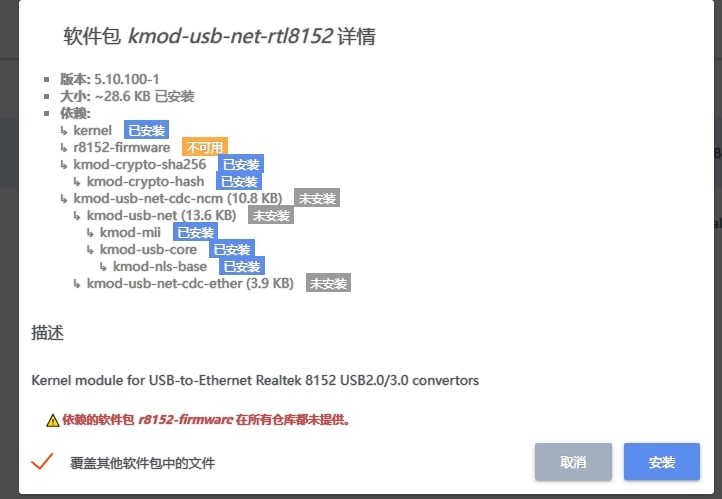
    <content type="html"><![CDATA[<p>最近几天不知道怎么回事，自己的openwrt好端端的就出现问题了，网络不通了，可以发现是dhcp不工作，没有下发ip，可问题是最近我没有动过路由器啊，很奇怪。</p><p>于是乎，重置路由器，不行。</p><p>只能换一个其他版本的openwrt了，于是换了一个版本，发现usb网卡拔插以后，只有如下信息：</p><span id="more"></span><pre><code class="highlight plaintext">[  524.423197] usb 2-1: USB disconnect, device number 2[  525.442946] usb 2-1: new SuperSpeed Gen 1 USB device number 3 using xhci_hcd</code></pre><p>然后用lsusb命令查看结果如下：</p><pre><code class="highlight plaintext">root@OPENWRT 23:03 ~# lsusb -t/:  Bus 02.Port 1: Dev 1, Class=root_hub, Driver=xhci_hcd/1p, 5000M    |__ Port 1: Dev 3, If 0, Class=, Driver=, 5000M    |__ Port 1: Dev 3, If 1, Class=, Driver=, 5000M</code></pre><p>显然，driver是空的，没有驱动啊，于是google了一下，说是要安装<code> kmod-usb-net-rtl8152</code>这个软件包才行，于是在软件包里面搜索了一下，发现有两个包：</p><ul><li>kmod-usb-net-rtl8152</li><li>kmod-usb-net-rtl8152-vendor</li></ul><p>第一个包，无法安装，因为缺少必要的一个固件包，如下图：</p><p><img src="https://img.zhoutao.ren/202209102149781.jpeg" alt="image.png"></p><p>于是只能安装第二个包，安装完成以后，重新拔插一次USB网卡，识别出来了</p><pre><code class="highlight plaintext">opkg install  kmod-usb-net-rtl8152-vendor</code></pre><p>然后再看一下<code>lsusb</code>的输出信息</p><pre><code class="highlight plaintext">root@OPENWRT 23:12 modules.d# lsusb -t/:  Bus 02.Port 1: Dev 1, Class=root_hub, Driver=xhci_hcd/1p, 5000M    |__ Port 1: Dev 5, If 0, Class=, Driver=r8152, 5000M</code></pre><p>Great! Driver有内容了！</p><hr><p>Tip: lsusb命令属于<code>usbutils</code>这个包</p><pre><code class="highlight plaintext">opkg install usbutils</code></pre><p>顺便推荐一个固件，精简但非常好用的固件，安装好后，apps非常少，然后你可以根据需要在老板提供的软件仓库中搜索安装，用什么安装什么，非常方便。</p><p><a href="https://bf.supes.top/">https://bf.supes.top/</a></p>]]></content>
    
    
    <summary type="html">&lt;p&gt;最近几天不知道怎么回事，自己的openwrt好端端的就出现问题了，网络不通了，可以发现是dhcp不工作，没有下发ip，可问题是最近我没有动过路由器啊，很奇怪。&lt;/p&gt;
&lt;p&gt;于是乎，重置路由器，不行。&lt;/p&gt;
&lt;p&gt;只能换一个其他版本的openwrt了，于是换了一个版本，发现usb网卡拔插以后，只有如下信息：&lt;/p&gt;</summary>


    <category term="Linux" scheme="https://82885312.vercel.app/categories/Linux/"/>
    
    
    <category term="OpenWRT" scheme="https://82885312.vercel.app/tags/OpenWRT/"/>
    
  </entry>
  
  <entry>
    <title>Maddy：多合一邮件服务器</title>
    <link href="https://82885312.vercel.app/2021/11/06/2021-11-06-all-in-one-maddy/"/>
    <id>https://82885312.vercel.app/2021/11/06/2021-11-06-all-in-one-maddy/</id>
    <published>2021-11-06T12:24:35.000Z</published>
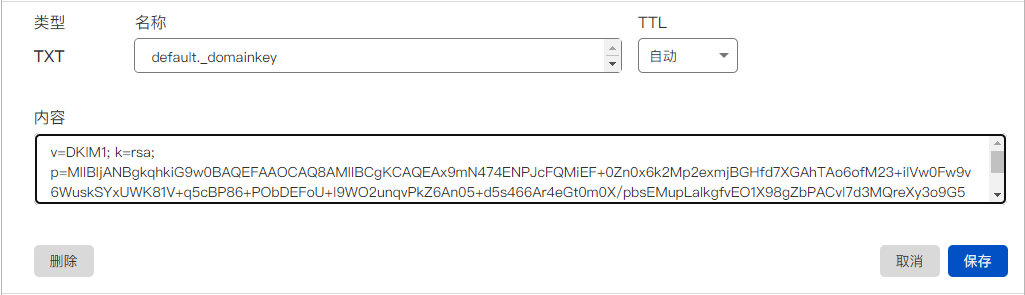
    <updated>2026-04-20T05:17:44.780Z</updated>
    
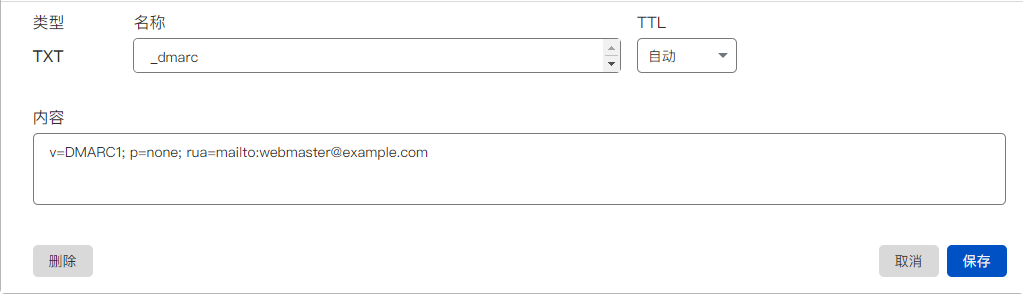
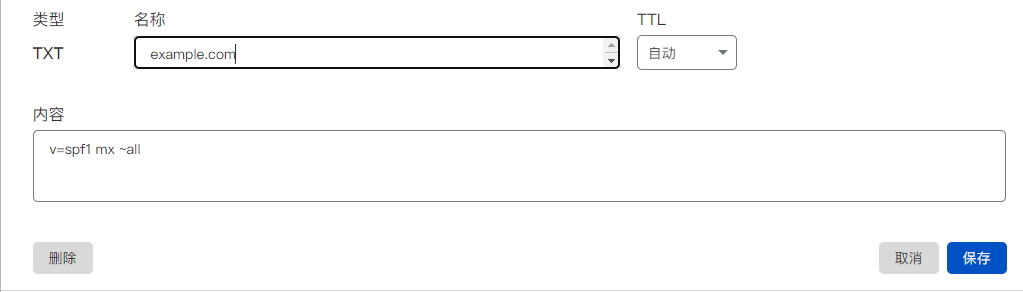
    <content type="html"><![CDATA[<p>我自己有几台VPS，平时都是吃灰状态，或者，除了翻墙，也再没做什么用途，感觉有点浪费，偶然，我发现了这个Maddy这个好东西，免去了自己配置postfix，dovecat等等之类的服务，仅仅需要配置一个文件就可以了。是不是很容易？</p><p>而且，还可以让自己的VPS发挥一点作用，对于长期持有的域名，真的不失为一个很好的用途，你们说呢？</p><blockquote><p>Maddy Mail Server implements all functionality required to run a e-mail server. It can send messages via SMTP (works as MTA), accept messages via SMTP (works as MX) and store messages while providing access to them via IMAP. In addition to that it implements auxiliary protocols that are mandatory to keep email reasonably secure (DKIM, SPF, DMARC, DANE, MTA-STS).<br>It replaces Postfix, Dovecot, OpenDKIM, OpenSPF, OpenDMARC and more with one daemon with uniform configuration and minimal maintenance cost.</p></blockquote><p><a href="https://github.com/foxcpp/maddy">Maddy</a>是一款用Go语言开发的邮件服务器，它实现了运行电子邮件服务器所需的所有功能。</p><p>Maddy用一个具有统一配置和最低维护成本的守护进程取代了Postfix、Dovecot、OpenDKIM、OpenSPF、OpenDMARC 等程序。</p><span id="more"></span><h2 id="准备工作"><a href="#准备工作" class="headerlink" title="准备工作"></a>准备工作</h2><ul><li>一台25端口没有被封的VPS</li><li>一个域名</li><li>Maddy程序，最新版本：<a href="https://github.com/foxcpp/maddy/releases/tag/v0.5.2">0.5.2</a></li></ul><h2 id="域名配置"><a href="#域名配置" class="headerlink" title="域名配置"></a>域名配置</h2><p>登录你的域名控制面板，新增几条DNS解析记录，这里我以CloudFlare为例。</p><p><strong>注意：以下例子中的IP和域名请替换为你自己的！</strong></p><p>首先添加一条A记录，指向你的VPS，名称这里以mail为例。</p><p><img src="https://cdn.jsdelivr.net/gh/istek/img/202111061951559.png"></p><p>然后，添加一条MX记录，指向上一步的那个域名</p><p><img src="https://cdn.jsdelivr.net/gh/istek/img/202111061955146.png"></p><p>再添加一条TXT记录，名称<code>_dmarc</code>，记录值：<code>v=DMARC1; p=none; rua=mailto:webmaster@example.com</code></p><p><img src="https://cdn.jsdelivr.net/gh/istek/img/202111062011695.png"></p><p>再添加一条TXT记录，名称<code>@</code>，记录值：<code>v=spf1 mx ~all</code></p><p><img src="https://cdn.jsdelivr.net/gh/istek/img/202111062014380.png"></p><p>DNS配置完了，先别关闭浏览器窗口，最后还要增加一个DKIM的TXT记录。</p><h2 id="安装前检查"><a href="#安装前检查" class="headerlink" title="安装前检查"></a>安装前检查</h2><p>务必确认VPS的<code>25</code>，<code>465</code>，<code>587</code>，<code>993</code>，<code>143</code>端口没有被占用以及这些端口有没有被服务器商家屏蔽。</p><p>有一些VPS的DEBIAN10 默认安装了exim4，需要卸载掉。</p><pre><code class="highlight plaintext">apt remove exim4apt autoremove</code></pre><h2 id="安装Maddy"><a href="#安装Maddy" class="headerlink" title="安装Maddy"></a>安装Maddy</h2><p>首先，安装必需的软件包</p><pre><code class="highlight plaintext">apt -y updateapt -y install acl zstd wget certbot</code></pre><p>下载最新的maddy包并解压</p><pre><code class="highlight plaintext">wget https://hub.fastgit.org/foxcpp/maddy/releases/download/v0.5.2/maddy-0.5.2-x86_64-linux-musl.tar.zstunzstd maddy-0.5.2-x86_64-linux-musl.tar.zsttar -xvf maddy-0.5.2-x86_64-linux-musl.tarcd maddy-0.5.2-x86_64-linux-musl/</code></pre><p>创建需要用到的目录，复制相应的文件到对应的目录：</p><pre><code class="highlight plaintext">mkdir /etc/maddycp maddy.conf /etc/maddycp maddy maddyctl /usr/local/bincp systemd/*.service /etc/systemd/system</code></pre><p>新增maddy用户，主要是为了跑maddy服务，请不要使用root用户跑服务！</p><pre><code class="highlight plaintext">useradd -mrU -s /sbin/nologin -d /var/lib/maddy -c &quot;maddy mail server&quot; maddy</code></pre><h2 id="申请SSL证书"><a href="#申请SSL证书" class="headerlink" title="申请SSL证书"></a>申请SSL证书</h2><pre><code class="highlight plaintext">certbot certonly --standalone --agree-tos --no-eff-email --email xxxxx@example.com -d mail.example.com</code></pre><p>配置 ACL权限，允许maddy用户读取证书及证书私钥。</p><pre><code class="highlight plaintext">setfacl -R -m u:maddy:rx /etc/letsencrypt/&#123;live,archive&#125;</code></pre><h2 id="配置maddy"><a href="#配置maddy" class="headerlink" title="配置maddy"></a>配置maddy</h2><pre><code class="highlight plaintext">nano /etc/maddy/maddy.conf</code></pre><p>修改如下的配置</p><pre><code class="highlight ini">$(hostname) = mail.example.com$(primary_domain) = example.com$(local_domains) = $(primary_domain)tls file /etc/letsencrypt/live/mail.example.com/fullchain.pem /etc/letsencrypt/live/mail.example.com/privkey.pem</code></pre><h2 id="启动maddy"><a href="#启动maddy" class="headerlink" title="启动maddy"></a>启动maddy</h2><p>启动并设置开机自启动服务</p><pre><code class="highlight plaintext">systemctl enable --now maddy.service</code></pre><p>检查服务状态</p><pre><code class="highlight plaintext">systemctl status maddy.service</code></pre><h2 id="配置DKIM"><a href="#配置DKIM" class="headerlink" title="配置DKIM"></a>配置DKIM</h2><p>在第一次成功启动maddy后，maddy会生成dkim密钥文件，需要在DNS解析配置一下。</p><pre><code class="highlight plaintext">cat /var/lib/maddy/dkim_keys/example.com_default.dns</code></pre><p>内容类似如下：</p><pre><code class="highlight plaintext">v=DKIM1; k=rsa; p=MIIBIjANBgkqhkiG9w0BAQEFAAOCAQ8AMIIBCgKCAQEAx9mN47......</code></pre><p>打开Cloudflare新增一条TXT记录，名称<code>default._domainkey</code>，记录值就是<code>/var/lib/maddy/dkim_keys/example.com_default.dns</code>的内容。</p><p><img src="https://cdn.jsdelivr.net/gh/istek/img/202111062111627.png"></p><h2 id="增加邮箱用户"><a href="#增加邮箱用户" class="headerlink" title="增加邮箱用户"></a>增加邮箱用户</h2><p>先增加一个邮箱用户</p><pre><code class="highlight plaintext">maddyctl creds create webmaster@example.com</code></pre><p>还需要创建一个imap本地存储账户与之关联，电子邮件的地址务必与用户账号的地址保持一致：</p><pre><code class="highlight plaintext">maddyctl imap-acct create webmaster@example.com</code></pre><h2 id="安装完成"><a href="#安装完成" class="headerlink" title="安装完成"></a>安装完成</h2><h2 id="附：EMAIL客户端配置"><a href="#附：EMAIL客户端配置" class="headerlink" title="附：EMAIL客户端配置"></a>附：EMAIL客户端配置</h2><p>用户名：webmaster.com<br>密码：（增加邮箱账号时新建的密码）<br>IMAP: mail.example.com:993 SSL&#x2F;TLS<br>SMTP: mail.example.com:465 SSL&#x2F;TLS</p>]]></content>
    
    
    <summary type="html">&lt;p&gt;我自己有几台VPS，平时都是吃灰状态，或者，除了翻墙，也再没做什么用途，感觉有点浪费，偶然，我发现了这个Maddy这个好东西，免去了自己配置postfix，dovecat等等之类的服务，仅仅需要配置一个文件就可以了。是不是很容易？&lt;/p&gt;
&lt;p&gt;而且，还可以让自己的VPS发挥一点作用，对于长期持有的域名，真的不失为一个很好的用途，你们说呢？&lt;/p&gt;
&lt;blockquote&gt;
&lt;p&gt;Maddy Mail Server implements all functionality required to run a e-mail server. It can send messages via SMTP (works as MTA), accept messages via SMTP (works as MX) and store messages while providing access to them via IMAP. In addition to that it implements auxiliary protocols that are mandatory to keep email reasonably secure (DKIM, SPF, DMARC, DANE, MTA-STS).&lt;br&gt;It replaces Postfix, Dovecot, OpenDKIM, OpenSPF, OpenDMARC and more with one daemon with uniform configuration and minimal maintenance cost.&lt;/p&gt;
&lt;/blockquote&gt;
&lt;p&gt;&lt;a href=&quot;https://github.com/foxcpp/maddy&quot;&gt;Maddy&lt;/a&gt;是一款用Go语言开发的邮件服务器，它实现了运行电子邮件服务器所需的所有功能。&lt;/p&gt;
&lt;p&gt;Maddy用一个具有统一配置和最低维护成本的守护进程取代了Postfix、Dovecot、OpenDKIM、OpenSPF、OpenDMARC 等程序。&lt;/p&gt;</summary>


    <category term="Linux" scheme="https://82885312.vercel.app/categories/Linux/"/>
    
    
    <category term="Maddy" scheme="https://82885312.vercel.app/tags/Maddy/"/>
    
  </entry>
  
  <entry>
    <title>使用 DOCKER 自建支持 DOH、DOT 的 DNS 服务器</title>
    <link href="https://82885312.vercel.app/2021/11/06/2021-11-06-shi-yong-dockerzi-jian-zhi-chi-dohdotde-dnsfu-wu-qi/"/>
    <id>https://82885312.vercel.app/2021/11/06/2021-11-06-shi-yong-dockerzi-jian-zhi-chi-dohdotde-dnsfu-wu-qi/</id>
    <published>2021-11-06T08:24:35.000Z</published>
    <updated>2026-04-20T05:17:44.780Z</updated>
    
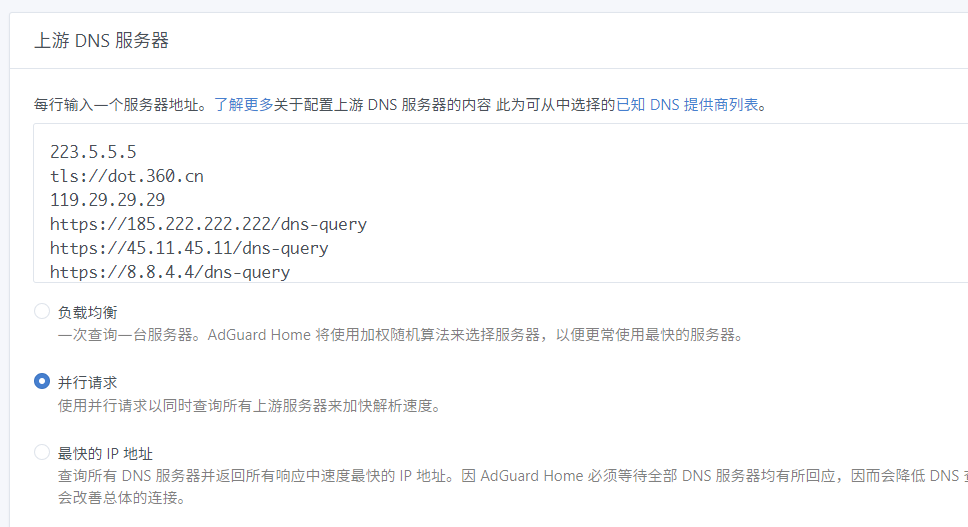
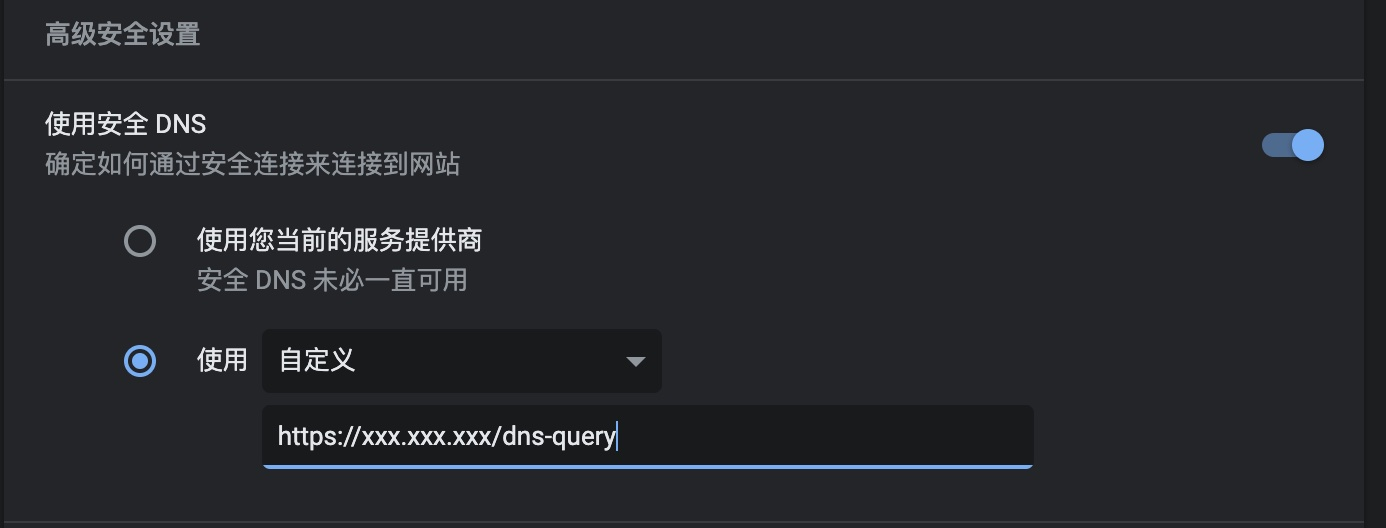
    <content type="html"><![CDATA[<p>DoH (DNS over HTTPS) 和 DoT (DNS over TLS) 有效避免了运营商的 DNS 监听和劫持，本文记录在公网搭建一个可以去广告的 DNS 服务器（借助 Adguard Home）。</p><h2 id="前期准备"><a href="#前期准备" class="headerlink" title="前期准备"></a>前期准备</h2><ul><li>公网服务器一台</li><li>域名一个，并且指向该公网服务器</li><li>域名指向该公网服务器，并申请好 TLS 证书（可使用 Let’s Encrypt 申请）</li></ul><span id="more"></span><h2 id="Docker-部署"><a href="#Docker-部署" class="headerlink" title="Docker 部署"></a>Docker 部署</h2><p>Docker Hub 镜像地址：<a href="https://hub.docker.com/r/adguard/adguardhome">https://hub.docker.com/r/adguard/adguardhome</a></p><p>安装好 Docker 后下载镜像，以下任选其一</p><pre><code class="highlight plaintext">docker pull adguard/adguardhome:latest  # 稳定版docker pull adguard/adguardhome:edge  # 最新的版本，可能不稳定</code></pre><p>新建配置目录和工作目录</p><pre><code class="highlight plaintext">mkdir /root/adguardhome/&#123;workdir,confdir&#125;</code></pre><p>启动镜像，完成后进入配置页面：HostIP:3000</p><pre><code class="highlight plaintext">docker run --name adguardhome \  -v /root/adguardhome/workdir:/opt/adguardhome/work \  -v /root/adguardhome/confdir:/opt/adguardhome/conf \  --restart always \  -p 443:443 -p 853:853 -p 3000:3000 -p 53:53/udp -p 53:53/tcp \  -d adguard/adguardhome:edge</code></pre><p>注意，第一次进入配置页面需要配置监听端口，配置好后注意修改容器启动时端口的映射，并以新的命令重新启动容器</p><h2 id="上游服务器设置"><a href="#上游服务器设置" class="headerlink" title="上游服务器设置"></a>上游服务器设置</h2><p>进入 Adguard Home 控制台，找到「设置 - DNS 设置」</p><p>「上游 DNS 服务器」可填入公共 DNS 服务器</p><p><img src="https://cdn.jsdelivr.net/gh/istek/img/202111061223825.png"></p><p>国内外常用的公共 DNS 如下：</p><table><thead><tr><th>DNS 服务器地址</th><th>类型</th><th>提供商</th></tr></thead><tbody><tr><td><a href="https://dns.alidns.com/dns-query">https://dns.alidns.com/dns-query</a></td><td>DNS over HTTPS</td><td>阿里 DNS</td></tr><tr><td>tls:&#x2F;&#x2F;dns.alidns.com</td><td>DNS over TLS</td><td>阿里 DNS</td></tr><tr><td><a href="https://doh.360.cn/dns-query">https://doh.360.cn/dns-query</a></td><td>DNS over HTTPS</td><td>360 DNS</td></tr><tr><td>119.29.29.29</td><td>常规 DNS</td><td>DNSPod</td></tr><tr><td>182.254.116.116</td><td>常规 DNS</td><td>DNSPod</td></tr><tr><td>223.5.5.5</td><td>常规 DNS</td><td>阿里 DNS</td></tr><tr><td>223.6.6.6</td><td>常规 DNS</td><td>阿里 DNS</td></tr><tr><td>114.114.114.114</td><td>常规 DNS</td><td>114 DNS</td></tr><tr><td><a href="https://dns.quad9.net/dns-query">https://dns.quad9.net/dns-query</a></td><td>DNS over HTTPS</td><td>Quard9</td></tr></tbody></table><p>「Bootstrap DNS 服务器」填入一到两个常规 或者 运行商 DNS 服务器就可以，如<code>223.5.5.5</code>和<code>119.29.29.29</code>。</p><p>在 「DNS 服务设定中」，勾选「使用客户端的子网地址（EDNS）」，可以使查询的客户端得到离其最近的网站 IP 解析。</p><h2 id="DoH-DoT-设置"><a href="#DoH-DoT-设置" class="headerlink" title="DoH &amp; DoT 设置"></a>DoH &amp; DoT 设置</h2><p>进入「设置 - 加密设置」</p><p>勾选「启用加密」，填写准备的域名，「HTTPS 端口」和「DNS-over-TLS 端口」均可自定义，如有改正记得重新修改容器启动时的端口映射配置。</p><p>证书可以选择「设置证书路径」和「粘贴证书内容」，按要求配置。</p><p>配置完成后可以使用「<code>https://域名</code>」访问控制台</p><h2 id="去广告设置"><a href="#去广告设置" class="headerlink" title="去广告设置"></a>去广告设置</h2><p>进入「过滤器 - DNS 封锁清单」</p><p>附一些常用的规则：</p><ul><li>HalfLife，规则合并自 EasylistChina、EasylistLite、CJX’sAnnoyance 合并规则：<code>https://gitee.com/halflife/list/raw/master/ad.txt</code></li><li>EasyPrivacy，隐私保护：<code>https://easylist-downloads.adblockplus.org/easyprivacy.txt</code></li><li>I don’t care about cookies，我不关心 Cookie 的问题，屏蔽网站的 cookies 相关的警告：<code>https://www.i-dont-care-about-cookies.eu/abp/</code></li><li>anti-AD，自称是目前中文区命中率最高的广告过滤列表：<code>https://gitee.com/privacy-protection-tools/anti-ad/raw/master/easylist.txt</code></li><li>乘风广告、视频过滤规则：<code>https://gitee.com/xinggsf/Adblock-Rule/raw/master/rule.txt</code>、<code>https://gitee.com/xinggsf/Adblock-Rule/raw/master/mv.txt</code></li></ul><p>至此配置完成。</p><p>使用普通 DNS 解析，在客户端填入服务器的 IP 即可，若要使用 DoH 和 DoT 则需使用另外的工具。</p><p>最新版的 Chrome 已经支持使用 DoH 解析，在 Chrome 中找到「设置 - 安全 - 使用安全 DNS」，按规则填入域名即可</p><p><img src="https://cdn.jsdelivr.net/gh/istek/img/202111061236829.png"></p>]]></content>
    
    
    <summary type="html">&lt;p&gt;DoH (DNS over HTTPS) 和 DoT (DNS over TLS) 有效避免了运营商的 DNS 监听和劫持，本文记录在公网搭建一个可以去广告的 DNS 服务器（借助 Adguard Home）。&lt;/p&gt;
&lt;h2 id=&quot;前期准备&quot;&gt;&lt;a href=&quot;#前期准备&quot; class=&quot;headerlink&quot; title=&quot;前期准备&quot;&gt;&lt;/a&gt;前期准备&lt;/h2&gt;&lt;ul&gt;
&lt;li&gt;公网服务器一台&lt;/li&gt;
&lt;li&gt;域名一个，并且指向该公网服务器&lt;/li&gt;
&lt;li&gt;域名指向该公网服务器，并申请好 TLS 证书（可使用 Let’s Encrypt 申请）&lt;/li&gt;
&lt;/ul&gt;</summary>


    <category term="Linux" scheme="https://82885312.vercel.app/categories/Linux/"/>
    
    
    <category term="AdGuard" scheme="https://82885312.vercel.app/tags/AdGuard/"/>
    
  </entry>
  
  <entry>
    <title>WIN10 ONEDRIVE无法运行</title>
    <link href="https://82885312.vercel.app/2021/09/10/2021-09-10-win10-onedrive-wu-fa-yun-xing/"/>
    <id>https://82885312.vercel.app/2021/09/10/2021-09-10-win10-onedrive-wu-fa-yun-xing/</id>
    <published>2021-09-10T08:24:35.000Z</published>
    <updated>2026-04-20T05:17:44.780Z</updated>
    
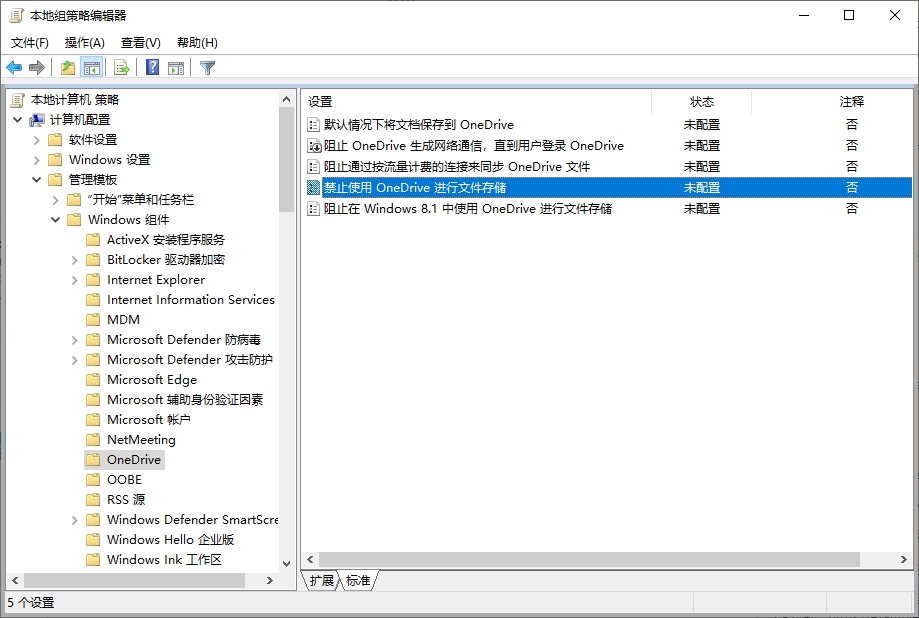
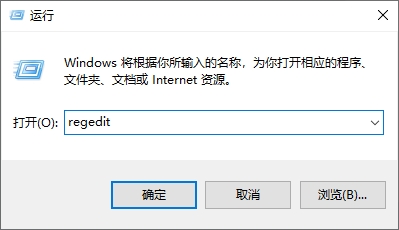
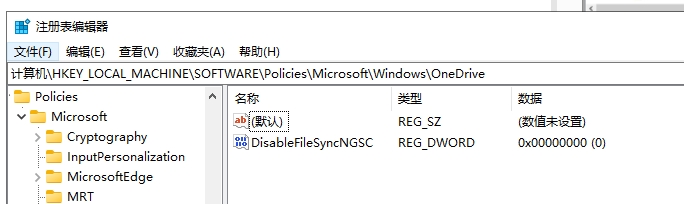
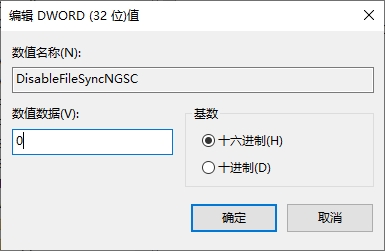
    <content type="html"><![CDATA[<p>最近发现自己的OneDrive 办公室和家里的都无缘无故的无法运行，即便是卸载以后重新安装，也是无法运行，于是乎，查了一下，发现是因为组策略中的“禁止使用OneDrive进行文件存储”的设置导致的。</p><p>如下图：</p><p><img src="https://pic.rmb.bdstatic.com/bjh/792f1b1fdbd1e8ba55981fd4ef1271c1.jpeg" alt="image.png"></p><span id="more"></span><p><strong>解决办法</strong>：</p><ol><li>打开开始-运行-输入<code>regedit</code>，回车</li></ol><p><img src="https://pic.rmb.bdstatic.com/bjh/8c350808744fdab1ab3d308585d02a5a.jpeg" alt="image.png"></p><ol start="2"><li>打开注册表管理器，依次<code>HKEY_LOCAL_MACHINE\Software\Policies\Microsoft\Windows\OneDrive</code>的文件夹。</li></ol><p><img src="https://pic.rmb.bdstatic.com/bjh/4392fbe013a4bc44f9f239db418d0622.jpeg" alt="image.png"></p><ol start="3"><li>将<code>DisableFileSyncNGSC</code>的DWORD值改为<code>0</code>。</li></ol><p><img src="https://pic.rmb.bdstatic.com/bjh/6afeaeaea04c9604e625cae8182bad03.jpeg" alt="image.png"></p><ol start="4"><li>重启电脑之后，启动OneDrive。</li></ol>]]></content>
    
    
    <summary type="html">&lt;p&gt;最近发现自己的OneDrive 办公室和家里的都无缘无故的无法运行，即便是卸载以后重新安装，也是无法运行，于是乎，查了一下，发现是因为组策略中的“禁止使用OneDrive进行文件存储”的设置导致的。&lt;/p&gt;
&lt;p&gt;如下图：&lt;/p&gt;
&lt;p&gt;&lt;img src=&quot;https://pic.rmb.bdstatic.com/bjh/792f1b1fdbd1e8ba55981fd4ef1271c1.jpeg&quot; alt=&quot;image.png&quot;&gt;&lt;/p&gt;</summary>


    <category term="Windows" scheme="https://82885312.vercel.app/categories/Windows/"/>
    
    
    <category term="OneDrive" scheme="https://82885312.vercel.app/tags/OneDrive/"/>
    
  </entry>
  
  <entry>
    <title>VPS配置不可描述服务</title>
    <link href="https://82885312.vercel.app/2021/04/11/2021-04-11-vps-xray-ready/"/>
    <id>https://82885312.vercel.app/2021/04/11/2021-04-11-vps-xray-ready/</id>
    <published>2021-04-11T08:24:35.000Z</published>
    <updated>2026-04-20T05:17:44.780Z</updated>
    
    <content type="html"><![CDATA[<h1 id="准备工作"><a href="#准备工作" class="headerlink" title="准备工作"></a>准备工作</h1><ul><li>一台域外VPS</li><li>一个域名</li><li>将域名解析到VPS的IP上。</li></ul><h1 id="1-开启bbr优化"><a href="#1-开启bbr优化" class="headerlink" title="1. 开启bbr优化"></a>1. 开启bbr优化</h1><pre><code class="highlight plaintext">wget -N --no-check-certificate &quot;https://github.000060000.xyz/tcp.sh&quot; &amp;&amp; chmod +x tcp.sh &amp;&amp; ./tcp.sh</code></pre><p><img src="https://cdn.jsdelivr.net/gh/istek/img/2021-04-11-15-21-16-image.png"></p><p>先输入11，启用bbr+fq加速，然后输入22，应用优化方案，之后需要重启VPS。</p><h1 id="2-安装xray"><a href="#2-安装xray" class="headerlink" title="2. 安装xray"></a>2. 安装xray</h1><pre><code class="highlight plaintext">bash -c &quot;$(curl -L https://github.com/XTLS/Xray-install/raw/main/install-release.sh)&quot; @ install</code></pre><h1 id="3-安装acme脚本"><a href="#3-安装acme脚本" class="headerlink" title="3. 安装acme脚本"></a>3. 安装acme脚本</h1><pre><code class="highlight plaintext">curl https://get.acme.sh | bash</code></pre><h1 id="4-创建Geo脚本"><a href="#4-创建Geo脚本" class="headerlink" title="4. 创建Geo脚本"></a>4. 创建Geo脚本</h1><p>vi &#x2F;usr&#x2F;local&#x2F;bin&#x2F;xray-geo</p><pre><code class="highlight plaintext">#!/bin/bashrm -fr /usr/local/share/xray/geo*.datwget -O /usr/local/share/xray/geoip.dat https://cdn.jsdelivr.net/gh/Loyalsoldier/v2ray-rules-dat@release/geoip.datwget -O /usr/local/share/xray/geosite.dat https://cdn.jsdelivr.net/gh/Loyalsoldier/v2ray-rules-dat@release/geosite.datecho &#x27;Geo Files have been updated&#x27;systemctl restart xrayecho &#x27;Xray service restarted&#x27;</code></pre><p>给予可执行权限</p><pre><code class="highlight plaintext">chmod +x /usr/local/bin/xray-geo</code></pre><h1 id="5-申请SSL证书及安装证书"><a href="#5-申请SSL证书及安装证书" class="headerlink" title="5. 申请SSL证书及安装证书"></a>5. 申请SSL证书及安装证书</h1><p>申请证书</p><pre><code class="highlight plaintext">/root/.acme.sh/acme.sh --issue -d www.example.com --standalone</code></pre><p>安装证书</p><pre><code class="highlight plaintext">/root/.acme.sh/acme.sh --install-cert -d www.example.com --fullchain-file /usr/local/etc/xray/example.cer --key-file /usr/local/etc/xray/example.keychown nobody.root /usr/local/etc/xray/example.*</code></pre><p>为了便于未来自动更新证书，可以创建如下脚本，放入crontab自动执行。</p><pre><code class="highlight plaintext">vi /usr/local/bin/xray-renew</code></pre><p>文件内容：</p><pre><code class="highlight plaintext">#!/bin/bash/root/.acme.sh/acme.sh --install-cert -d www.exmaple.com --fullchain-file /usr/local/etc/xray/example.cer --key-file /usr/local/etc/xray/example.keyecho &quot;Xray Certificates Renewed&quot;chown nobody.root /usr/local/etc/xray/example.*echo &quot;User&amp;Group Changed for Xray&quot;systemctl restart xrayecho &quot;Xray Restarted&quot;</code></pre><p>授予可执行权限</p><pre><code class="highlight plaintext">chmod +x /usr/local/bin/xray-renew</code></pre><p>增加计划任务</p><pre><code class="highlight plaintext">crontab -e</code></pre><p>在文件中增加如下内容，意思是每个星期五的凌晨2点执行一次 xray-renew 脚本。</p><pre><code class="highlight plaintext">0 2 * * 5 bash /usr/local/bin/xray-renew</code></pre><p>可看下图</p><p><img src="https://cdn.jsdelivr.net/gh/istek/img/20210411151404.png"></p><h1 id="6-生成UUID，修改配置文件"><a href="#6-生成UUID，修改配置文件" class="headerlink" title="6. 生成UUID，修改配置文件"></a>6. 生成UUID，修改配置文件</h1><p>在命令提示符下输入下面的命令，就会返回一个新生成的UUID，将这个UUID保存一下。</p><pre><code class="highlight plaintext">root@nerd:~# xray uuidf47cdd50-7468-4758-afb8-1fd3a4887a49</code></pre><p>在下面的xray配置文件中，修改所有的uuid为上面生成的UUID。</p><pre><code class="highlight plaintext">&#123;    // 1_日志设置    &quot;log&quot;: &#123;        &quot;loglevel&quot;: &quot;warning&quot;,        &quot;access&quot;: &quot;/var/log/xray/access.log&quot;,        &quot;error&quot;: &quot;/var/log/xray/error.log&quot;    &#125;,    // 2_路由设置(白名单)    &quot;routing&quot;: &#123;        &quot;rules&quot;: [            &#123;              &quot;type&quot;: &quot;field&quot;,              &quot;outboundTag&quot;: &quot;Reject&quot;,              &quot;domain&quot;: [                &quot;geosite:category-ads-all&quot;              ]            &#125;,            &#123;              &quot;type&quot;: &quot;field&quot;,              &quot;outboundTag&quot;: &quot;Direct&quot;,              &quot;domain&quot;: [                &quot;geosite:private&quot;,                &quot;geosite:apple-cn&quot;,                &quot;geosite:google-cn&quot;,                &quot;geosite:tld-cn&quot;,                &quot;geosite:category-games@cn&quot;              ]            &#125;,            &#123;              &quot;type&quot;: &quot;field&quot;,              &quot;outboundTag&quot;: &quot;Proxy&quot;,              &quot;domain&quot;: [                &quot;geosite:geolocation-!cn&quot;              ]            &#125;,            &#123;              &quot;type&quot;: &quot;field&quot;,              &quot;outboundTag&quot;: &quot;Direct&quot;,              &quot;domain&quot;: [                &quot;geosite:cn&quot;              ]            &#125;,            &#123;             &quot;type&quot;: &quot;field&quot;,             &quot;outboundTag&quot;: &quot;Proxy&quot;,             &quot;network&quot;: &quot;tcp,udp&quot;            &#125;        ]    &#125;,    // 3_DNS设置    &quot;dns&quot;: &#123;        &quot;hosts&quot;: &#123;          &quot;dns.google&quot;: &quot;8.8.4.4&quot;,          &quot;doh.pub&quot;: &quot;119.29.29.29&quot;        &#125;,        &quot;servers&quot;: [          &quot;https://dns.google/dns-query&quot;,        &#123;          &quot;address&quot;: &quot;https+local://223.5.5.5/dns-query&quot;,          &quot;domains&quot;: [            &quot;geosite:cn&quot;,            &quot;geosite:icloud&quot;,            &quot;geosite:category-games@cn&quot;          ],          &quot;expectIPs&quot;: [            &quot;geoip:cn&quot;          ]        &#125;,        &#123;          &quot;address&quot;: &quot;https://1.1.1.1/dns-query&quot;,          &quot;domains&quot;: [            &quot;geosite:geolocation-!cn&quot;          ]        &#125;      ]    &#125;,    // 4_入站设置    &quot;inbounds&quot;: [        &#123;            &quot;port&quot;: 8443,            &quot;protocol&quot;: &quot;vless&quot;,            &quot;settings&quot;: &#123;                &quot;clients&quot;: [                    &#123;                        &quot;id&quot;: &quot;uuid&quot;, // 填写你的 UUID                        &quot;flow&quot;: &quot;xtls-rprx-direct&quot;,                        &quot;level&quot;: 0,                        &quot;email&quot;: &quot;love@example.com&quot;                    &#125;                ],                &quot;decryption&quot;: &quot;none&quot;,                &quot;fallbacks&quot;: [                    &#123;                        &quot;dest&quot;: 1310, // 默认回落到 Xray 的 Trojan 协议                        &quot;xver&quot;: 1                    &#125;,                    &#123;                        &quot;path&quot;: &quot;/ws1169&quot;, // 必须换成自定义的 PATH                        &quot;dest&quot;: 1234,                        &quot;xver&quot;: 1                    &#125;,                    &#123;                        &quot;path&quot;: &quot;/vst1170&quot;, // 必须换成自定义的 PATH                        &quot;dest&quot;: 2345,                        &quot;xver&quot;: 1                    &#125;,                    &#123;                        &quot;path&quot;: &quot;/vmw1171&quot;, // 必须换成自定义的 PATH                        &quot;dest&quot;: 3456,                        &quot;xver&quot;: 1                    &#125;                ]            &#125;,            &quot;streamSettings&quot;: &#123;                &quot;network&quot;: &quot;tcp&quot;,                &quot;security&quot;: &quot;xtls&quot;,                &quot;xtlsSettings&quot;: &#123;                    &quot;alpn&quot;: [                        &quot;http/1.1&quot;                    ],                    &quot;certificates&quot;: [                        &#123;                            &quot;certificateFile&quot;: &quot;/usr/local/etc/xray/example.cer&quot;, //SSL证书                            &quot;keyFile&quot;: &quot;/usr/local/etc/xray/example.key&quot; //ssl密钥                        &#125;                    ]                &#125;            &#125;        &#125;,        &#123;            &quot;port&quot;: 1310,            &quot;listen&quot;: &quot;127.0.0.1&quot;,            &quot;protocol&quot;: &quot;trojan&quot;,            &quot;settings&quot;: &#123;                &quot;clients&quot;: [                    &#123;                        &quot;password&quot;: &quot;mima&quot;, // 填写你的密码                        &quot;level&quot;: 0,                        &quot;email&quot;: &quot;love@example.com&quot;                    &#125;                ],                &quot;fallbacks&quot;: [                    &#123;                        &quot;dest&quot;: 80 // 或者回落到其它也防探测的代理                    &#125;                ]            &#125;,            &quot;streamSettings&quot;: &#123;                &quot;network&quot;: &quot;tcp&quot;,                &quot;security&quot;: &quot;none&quot;,                &quot;tcpSettings&quot;: &#123;                    &quot;acceptProxyProtocol&quot;: true                &#125;            &#125;        &#125;,        &#123;            &quot;port&quot;: 1234,            &quot;listen&quot;: &quot;127.0.0.1&quot;,            &quot;protocol&quot;: &quot;vless&quot;,            &quot;settings&quot;: &#123;                &quot;clients&quot;: [                    &#123;                        &quot;id&quot;: &quot;uuid&quot;, // 填写你的 UUID                        &quot;level&quot;: 0,                        &quot;email&quot;: &quot;love@example.com&quot;                    &#125;                ],                &quot;decryption&quot;: &quot;none&quot;            &#125;,            &quot;streamSettings&quot;: &#123;                &quot;network&quot;: &quot;ws&quot;,                &quot;security&quot;: &quot;none&quot;,                &quot;wsSettings&quot;: &#123;                    &quot;acceptProxyProtocol&quot;: true, // 提醒：若你用 Nginx/Caddy 等反代 WS，需要删掉这行                    &quot;path&quot;: &quot;/ws1169&quot; // 必须换成自定义的 PATH，需要和分流的一致                &#125;            &#125;        &#125;,        &#123;            &quot;port&quot;: 2345,            &quot;listen&quot;: &quot;127.0.0.1&quot;,            &quot;protocol&quot;: &quot;vmess&quot;,            &quot;settings&quot;: &#123;                &quot;clients&quot;: [                    &#123;                        &quot;id&quot;: &quot;uuid&quot;, // 填写你的 UUID                        &quot;level&quot;: 0,                        &quot;email&quot;: &quot;love@example.com&quot;                    &#125;                ]            &#125;,            &quot;streamSettings&quot;: &#123;                &quot;network&quot;: &quot;tcp&quot;,                &quot;security&quot;: &quot;none&quot;,                &quot;tcpSettings&quot;: &#123;                    &quot;acceptProxyProtocol&quot;: true,                    &quot;header&quot;: &#123;                        &quot;type&quot;: &quot;http&quot;,                        &quot;request&quot;: &#123;                            &quot;path&quot;: [                                &quot;/vst1170&quot; // 必须换成自定义的 PATH，需要和分流的一致                            ]                        &#125;                    &#125;                &#125;            &#125;        &#125;,        &#123;            &quot;port&quot;: 3456,            &quot;listen&quot;: &quot;127.0.0.1&quot;,            &quot;protocol&quot;: &quot;vmess&quot;,            &quot;settings&quot;: &#123;                &quot;clients&quot;: [                    &#123;                        &quot;id&quot;: &quot;uuid&quot;, // 填写你的 UUID                        &quot;level&quot;: 0,                        &quot;email&quot;: &quot;love@example.com&quot;                    &#125;                ]            &#125;,            &quot;streamSettings&quot;: &#123;                &quot;network&quot;: &quot;ws&quot;,                &quot;security&quot;: &quot;none&quot;,                &quot;wsSettings&quot;: &#123;                    &quot;acceptProxyProtocol&quot;: true, // 提醒：若你用 Nginx/Caddy 等反代 WS，需要删掉这行                    &quot;path&quot;: &quot;/vmw1171&quot; // 必须换成自定义的 PATH，需要和分流的一致                &#125;            &#125;        &#125;    ],    // 5_出站设置    &quot;outbounds&quot;: [        // 5.1 第一个出站是默认规则，freedom就是对外直连（vps已经是外网，所以直连）        &#123;            &quot;tag&quot;: &quot;direct&quot;,            &quot;protocol&quot;: &quot;freedom&quot;        &#125;,        // 5.2 屏蔽规则，blackhole协议就是把流量导入到黑洞里（屏蔽）        &#123;            &quot;tag&quot;: &quot;block&quot;,            &quot;protocol&quot;: &quot;blackhole&quot;        &#125;    ]&#125;</code></pre><p>建议copy出来，粘贴到notepad等文本编辑器中修改，修改好后，复制全文，粘贴到xray的<code>/usr/local/etc/xray/config.json</code>文件中，或者，另存为<code>config.json</code>并上传到<code>/usr/local/etc/xray</code>目录中。</p><h1 id="7-更新资源文件并重启"><a href="#7-更新资源文件并重启" class="headerlink" title="7. 更新资源文件并重启"></a>7. 更新资源文件并重启</h1><pre><code class="highlight plaintext">xray-geo</code></pre><h1 id="8-检查服务是否在监听中"><a href="#8-检查服务是否在监听中" class="headerlink" title="8. 检查服务是否在监听中"></a>8. 检查服务是否在监听中</h1><pre><code class="highlight plaintext">ss -lptun</code></pre><p>查看监听端口</p><p><img src="https://cdn.jsdelivr.net/gh/istek/img/20210411154629.png"></p><p>great! 服务已经启动了。现在可以在你本地的openwrt或者客户端中配置并使用了，客户端的配置我就不赘述了。</p><p>《全文完》</p>]]></content>


    <summary type="html">&lt;h1 id=&quot;准备工作&quot;&gt;&lt;a href=&quot;#准备工作&quot; class=&quot;headerlink&quot; title=&quot;准备工作&quot;&gt;&lt;/a&gt;准备工作&lt;/h1&gt;&lt;ul&gt;
&lt;li&gt;一台域外VPS&lt;/li&gt;
&lt;li&gt;一个域名&lt;/li&gt;
&lt;li&gt;将域名解析到VPS的IP上。&lt;/li&gt;
&lt;/ul&gt;</summary>


    <category term="Linux" scheme="https://82885312.vercel.app/categories/Linux/"/>
    
    
    <category term="Xray" scheme="https://82885312.vercel.app/tags/Xray/"/>
    
  </entry>
  
  <entry>
    <title>部署WordPress+PostgreSQL</title>
    <link href="https://82885312.vercel.app/2020/11/08/2020-11-08-deploy-postgresql-wordpress/"/>
    <id>https://82885312.vercel.app/2020/11/08/2020-11-08-deploy-postgresql-wordpress/</id>
    <published>2020-11-08T01:24:35.000Z</published>
    <updated>2026-04-20T05:17:44.780Z</updated>
    
    <content type="html"><![CDATA[<p>想起来PostgreSQL这么优秀的开源数据库，难道Wordpress不支持吗？于是乎一番搜索，发现Wordpress原生是不支持PostgreSQL的，只能通过插件的形式更换数据库，这个插件名叫<a href="https://github.com/gmercey/PG4WP" title="PG4WP">PG4WP</a>。</p><h2 id="准备工作"><a href="#准备工作" class="headerlink" title="准备工作"></a>准备工作</h2><p>首先，备份数据库，并且，导出XML文件，XML文件是用来在新安装的wordpress中导入的，因为mysql导出的SQL，无法直接用到PostgreSQL的。</p><p>导出完成后，reinstall操作系统吧，装好后，可以使用oneinstack之类的脚本，或者，自己安装PostgreSQL，php，nginx这些，还比脚本之类的快一点，效率为上，直接手工apt安装即可。</p><p>域名提前做好解析。</p><h2 id="1-安装必需的库"><a href="#1-安装必需的库" class="headerlink" title="1. 安装必需的库"></a>1. 安装必需的库</h2><pre><code class="highlight bash">apt install curl wget gnupg2 ca-certificates lsb-release socat git</code></pre><h2 id="2-安装PostgreSQL"><a href="#2-安装PostgreSQL" class="headerlink" title="2. 安装PostgreSQL"></a>2. 安装PostgreSQL</h2><pre><code class="highlight bash"><span class="comment"># 引入postgreSQL官方源</span>sh -c <span class="string">&#x27;echo &quot;deb http://apt.postgresql.org/pub/repos/apt $(lsb_release -cs)-pgdg main&quot; &gt; /etc/apt/sources.list.d/pgdg.list&#x27;</span><span class="comment"># 导入密钥签名:</span>wget --quiet -O - https://www.postgresql.org/media/keys/ACCC4CF8.asc | apt-key add -<span class="comment"># 更新软件包库:</span>apt-get update<span class="comment"># 安装PostgreSQL.</span><span class="comment"># 如果要安装特定版本，那就用&#x27;postgresql-12&#x27; 或者 &#x27;postgresql&#x27;:</span>apt-get -y install postgresql</code></pre><h2 id="3-修改PostgreSQL本地认证"><a href="#3-修改PostgreSQL本地认证" class="headerlink" title="3. 修改PostgreSQL本地认证"></a>3. 修改PostgreSQL本地认证</h2><pre><code class="highlight bash">vi /etc/postgresql/12/main/pg_hba.conf//对于<span class="built_in">local</span>的认证修改为md5<span class="built_in">local</span>   all             all                                     md5</code></pre><h2 id="4-启动数据库"><a href="#4-启动数据库" class="headerlink" title="4. 启动数据库"></a>4. 启动数据库</h2><pre><code class="highlight bash">systemctl <span class="built_in">enable</span> postgresqlsystemctl start postgresql</code></pre><h2 id="5-安装php"><a href="#5-安装php" class="headerlink" title="5.安装php"></a>5.安装php</h2><pre><code class="highlight bash">apt install php7.3 php7.3-curl php7.3-fpm php7.3-gd php7.3-json php7.3-mbstring \php7.3-mysql php7.3-opcache php7.3-pgsql php7.3-xml php7.3-xmlrpc php7.3-zip</code></pre><h2 id="6-安装nginx"><a href="#6-安装nginx" class="headerlink" title="6. 安装nginx"></a>6. 安装nginx</h2><pre><code class="highlight bash"><span class="comment"># 添加nginx官方源</span><span class="built_in">echo</span> <span class="string">&quot;deb http://nginx.org/packages/debian `lsb_release -cs` nginx&quot;</span> \    | <span class="built_in">tee</span> /etc/apt/sources.list.d/nginx.list<span class="comment"># 导入源签名密钥</span>curl -fsSL https://nginx.org/keys/nginx_signing.key | apt-key add -<span class="comment"># 更新软件仓库</span>apt update<span class="comment"># 安装nginx</span>apt install nginx</code></pre><h2 id="7-安装acme-sh"><a href="#7-安装acme-sh" class="headerlink" title="7. 安装acme.sh"></a>7. 安装acme.sh</h2><pre><code class="highlight bash">curl  https://get.acme.sh | sh</code></pre><h2 id="8-生成dhparam文件"><a href="#8-生成dhparam文件" class="headerlink" title="8. 生成dhparam文件"></a>8. 生成dhparam文件</h2><pre><code class="highlight bash"><span class="built_in">mkdir</span> /etc/nginx/sslopenssl dhparam -out /etc/nginx/ssl/dhparam.pem 2048</code></pre><h2 id="9-创建普通用户"><a href="#9-创建普通用户" class="headerlink" title="9. 创建普通用户"></a>9. 创建普通用户</h2><pre><code class="highlight bash">useradd -m -d /web www<span class="built_in">mkdir</span> /web/&#123;wwwroot,wwwlogs&#125;<span class="built_in">chown</span> -R www.www /web</code></pre><h2 id="10-修改配置文件"><a href="#10-修改配置文件" class="headerlink" title="10. 修改配置文件"></a>10. 修改配置文件</h2><h3 id="nginx配置文件"><a href="#nginx配置文件" class="headerlink" title="nginx配置文件"></a>nginx配置文件</h3><pre><code class="highlight ini">user  www www<span class="comment">;</span>worker_processes auto<span class="comment">;</span>worker_cpu_affinity auto<span class="comment">;</span>error_log  /var/log/nginx/nginx_error.log  crit<span class="comment">;</span>pid        /var/run/nginx.pid<span class="comment">;</span><span class="comment">#Specifies the value for maximum file descriptors that can be opened by this process.</span>worker_rlimit_nofile 51200<span class="comment">;</span>events    &#123;        use epoll<span class="comment">;</span>        worker_connections 51200<span class="comment">;</span>        multi_accept off<span class="comment">;</span>        accept_mutex off<span class="comment">;</span>    &#125;http    &#123;        include       mime.types<span class="comment">;</span>        default_type  application/octet-stream<span class="comment">;</span>        server_names_hash_bucket_size 128<span class="comment">;</span>        client_header_buffer_size 32k<span class="comment">;</span>        large_client_header_buffers 4 32k<span class="comment">;</span>        client_max_body_size 50m<span class="comment">;</span>        sendfile on<span class="comment">;</span>        sendfile_max_chunk 512k<span class="comment">;</span>        tcp_nopush on<span class="comment">;</span>        keepalive_timeout 60<span class="comment">;</span>        tcp_nodelay on<span class="comment">;</span>        fastcgi_connect_timeout 300<span class="comment">;</span>        fastcgi_send_timeout 300<span class="comment">;</span>        fastcgi_read_timeout 300<span class="comment">;</span>        fastcgi_buffer_size 64k<span class="comment">;</span>        fastcgi_buffers 4 64k<span class="comment">;</span>        fastcgi_busy_buffers_size 128k<span class="comment">;</span>        fastcgi_temp_file_write_size 256k<span class="comment">;</span>        gzip on<span class="comment">;</span>        gzip_min_length  1k<span class="comment">;</span>        gzip_buffers     4 16k<span class="comment">;</span>        gzip_http_version 1.1<span class="comment">;</span>        gzip_comp_level 2<span class="comment">;</span>        gzip_types     text/plain application/javascript application/x-javascript text/javascript text/css application/xml application/xml+rss<span class="comment">;</span>        gzip_vary on<span class="comment">;</span>        gzip_proxied   expired no-cache no-store private auth<span class="comment">;</span>        gzip_disable   &quot;MSIE <span class="section">[1-6]</span>\.&quot;<span class="comment">;</span>        <span class="comment">#limit_conn_zone $binary_remote_addr zone=perip:10m;</span>        <span class="comment">##If enable limit_conn_zone,add &quot;limit_conn perip 10;&quot; to server section.</span>        server_tokens off<span class="comment">;</span>        access_log off<span class="comment">;</span>include /etc/nginx/conf.d/*.conf<span class="comment">;</span>&#125;</code></pre><h3 id="php-conf"><a href="#php-conf" class="headerlink" title="php.conf"></a>php.conf</h3><pre><code class="highlight plaintext">vi /etc/nginx/php.conf</code></pre><pre><code class="highlight nginx"><span class="section">location</span> <span class="regexp">~ [^/]\.php(/|$)</span>        &#123;            <span class="attribute">fastcgi_pass</span>  unix:/run/php/php7.3-fpm.sock;            <span class="attribute">fastcgi_index</span> index.php;            <span class="attribute">include</span> fastcgi_params;            <span class="attribute">fastcgi_split_path_info</span><span class="regexp"> ^(.+?\.php)(/.*)$</span>;            <span class="attribute">set</span> <span class="variable">$path_info</span> <span class="variable">$fastcgi_path_info</span>;            <span class="attribute">fastcgi_param</span> PATH_INFO       <span class="variable">$path_info</span>;            <span class="attribute">try_files</span> <span class="variable">$fastcgi_script_name</span> =<span class="number">404</span>;        &#125;</code></pre><h3 id="etc-nginx-fastcgi-params文件"><a href="#etc-nginx-fastcgi-params文件" class="headerlink" title="/etc/nginx/fastcgi_params文件"></a><code>/etc/nginx/fastcgi_params</code>文件</h3><p>新增一行在最后一行</p><pre><code class="highlight nginx"><span class="attribute">fastcgi_param</span>  SCRIPT_FILENAME    <span class="variable">$document_root</span><span class="variable">$fastcgi_script_name</span>;</code></pre><h3 id="php-fpm"><a href="#php-fpm" class="headerlink" title="php-fpm"></a>php-fpm</h3><p>编辑<code>/etc/php/7.3/fpm/pool.d/www.conf</code>文件，使用如下配置即可</p><pre><code class="highlight ini"><span class="section">[www]</span><span class="attr">listen</span> = /run/php/php7.<span class="number">3</span>-fpm.sock<span class="attr">listen.backlog</span> = -<span class="number">1</span><span class="attr">listen.allowed_clients</span> = <span class="number">127.0</span>.<span class="number">0.1</span><span class="attr">listen.owner</span> = www<span class="attr">listen.group</span> = www<span class="attr">listen.mode</span> = <span class="number">0666</span><span class="attr">user</span> = www<span class="attr">group</span> = www<span class="attr">pm</span> = dynamic<span class="attr">pm.max_children</span> = <span class="number">10</span><span class="attr">pm.start_servers</span> = <span class="number">2</span><span class="attr">pm.min_spare_servers</span> = <span class="number">1</span><span class="attr">pm.max_spare_servers</span> = <span class="number">6</span><span class="attr">pm.max_requests</span> = <span class="number">1024</span><span class="attr">pm.process_idle_timeout</span> = <span class="number">10</span>s<span class="attr">request_terminate_timeout</span> = <span class="number">100</span><span class="attr">request_slowlog_timeout</span> = <span class="number">0</span><span class="attr">slowlog</span> = /var/log/slow.log</code></pre><h2 id="8-启动nginx，php-fpm"><a href="#8-启动nginx，php-fpm" class="headerlink" title="8. 启动nginx，php-fpm"></a>8. 启动nginx，php-fpm</h2><pre><code class="highlight bash">systemctl <span class="built_in">enable</span> php7.3-fpmsystemctl <span class="built_in">enable</span> nginxsystemctl restart php7.3-fpmsystemctl restart nginx</code></pre><h2 id="9-签发ssl证书"><a href="#9-签发ssl证书" class="headerlink" title="9. 签发ssl证书"></a>9. 签发ssl证书</h2><pre><code class="highlight bash"><span class="built_in">source</span> .bashrcacme.sh --issue -d www.mydomain.com --standalone</code></pre><p>如无意外，应该会看到签发的证书的具体位置，例如<code>/root/.acme.sh/www.mydomain.com/fullchain.cer</code>和<code>/root/.acme.sh/www.mydomain.com/www.mydomain.com.key</code>。但是我们还需要将证书安装到nginx的ssl目录，而不是直接使用上面目录的证书，会有权限问题，再者目录会发生变化。</p><pre><code class="highlight bash">acme.sh --install-cert -d www.example.com \--key-file       /etc/nginx/ssl/www.mydomain.com.key \--fullchain-file /etc/nginx/ssl/fullchain.cer \--reloadcmd     <span class="string">&quot;service nginx force-reload&quot;</span></code></pre><h2 id="10-给nginx增加虚拟主机"><a href="#10-给nginx增加虚拟主机" class="headerlink" title="10. 给nginx增加虚拟主机"></a>10. 给nginx增加虚拟主机</h2><p>新建配置文件 <code>vi /etc/nginx/conf.d/mydomain.conf</code></p><pre><code class="highlight nginx"><span class="section">server</span>        &#123;        <span class="attribute">listen</span>          <span class="number">80</span>;        <span class="attribute">server_name</span> www.mydomain.com mydomain.com;        <span class="attribute">return</span> <span class="number">301</span> https://www.mydomain.com<span class="variable">$request_uri</span>;&#125;<span class="section">server</span>        &#123;        <span class="attribute">listen</span> <span class="number">443</span> ssl http2;        <span class="comment">#listen [::]:443 ssl http2;</span>        <span class="attribute">server_name</span>     www.mydomain.com mydomain.com;        <span class="attribute">index</span> index.html index.htm index.php default.html default.htm default.php;        <span class="attribute">root</span>  /web/wwwroot/www.mydomain.com;    <span class="section">location</span> / &#123;        <span class="attribute">try_files</span> <span class="variable">$uri</span> <span class="variable">$uri</span>/ /index.php?<span class="variable">$args</span>;        <span class="attribute">index</span>  index.php;    &#125;        <span class="attribute">ssl_certificate</span> /etc/nginx/ssl/fullchain.cer;        <span class="attribute">ssl_certificate_key</span> /etc/nginx/ssl/www.mydomain.com.key;        <span class="attribute">ssl_session_timeout</span> <span class="number">5m</span>;        <span class="attribute">ssl_protocols</span> TLSv1 TLSv1.<span class="number">1</span> TLSv1.<span class="number">2</span> TLSv1.<span class="number">3</span>;        <span class="attribute">ssl_prefer_server_ciphers</span> <span class="literal">on</span>;        <span class="attribute">ssl_ciphers</span> <span class="string">&quot;TLS13-AES-256-GCM-SHA384:TLS13-CHACHA20-POLY1305-SHA256:TLS13-AES-128-GCM-SHA256:TLS13-AES-128-CCM-8-SHA256:TLS13-AES-128-CCM-SHA256:EECDH+CHACHA20:EECDH+CHACHA20-draft:EECDH+AES128:RSA+AES128:EECDH+AES256:RSA+AES256:EECDH+3DES:RSA+3DES:!MD5&quot;</span>;        <span class="attribute">ssl_session_cache</span> builtin:<span class="number">1000</span> shared:SSL:<span class="number">10m</span>;        <span class="attribute">ssl_dhparam</span> /etc/nginx/ssl/dhparam.pem;        <span class="comment">#error_page   404   /404.html;</span>        <span class="comment"># Deny access to PHP files in specific directory</span>        <span class="section">location</span> <span class="regexp">~ /(wp-content|uploads|wp-includes|images)/.*\.php$</span> &#123; <span class="attribute">deny</span> all; &#125;        <span class="attribute">include</span> php.conf;        <span class="section">location</span> <span class="regexp">~ .*\.(gif|jpg|jpeg|png|bmp|swf)$</span>        &#123;            <span class="attribute">expires</span>      <span class="number">30d</span>;        &#125;        <span class="section">location</span> <span class="regexp">~ .*\.(js|css)?$</span>        &#123;            <span class="attribute">expires</span>      <span class="number">12h</span>;        &#125;        <span class="section">location</span> <span class="regexp">~ /.well-known</span> &#123;            <span class="attribute">allow</span> all;        &#125;        <span class="section">location</span> <span class="regexp">~ /\.</span>        &#123;            <span class="attribute">deny</span> all;        &#125;        <span class="attribute">access_log</span>  /web/wwwlogs/mydomain.log;&#125;</code></pre><h2 id="11-测试虚拟主机是否工作正常"><a href="#11-测试虚拟主机是否工作正常" class="headerlink" title="11. 测试虚拟主机是否工作正常"></a>11. 测试虚拟主机是否工作正常</h2><p>新建一个phpinfo测试脚本<code>vi /web/wwwroot/www.mydomain.com/t.php</code></p><pre><code class="highlight php"><span class="meta">&lt;?php</span>3    <span class="title function_ invoke__">phpinfo</span>();<span class="meta">?&gt;</span></code></pre><p>用浏览器打开 <a href="http://www.mydomain.com/t.php">http://www.mydomain.com/t.php</a> 验证</p><ul><li>是否如我们期待跳转到https</li><li>是否能解析php脚本</li></ul><p>如无意外，你应该能看到地址栏的小锁子了，并且PHP成功解析。</p><p><img src="https://i.loli.net/2020/11/07/XkQfMKvlWwd6DEy.png" alt="file"></p><h2 id="12-为Wordpress创建数据库"><a href="#12-为Wordpress创建数据库" class="headerlink" title="12. 为Wordpress创建数据库"></a>12. 为Wordpress创建数据库</h2><pre><code class="highlight bash">su - postgrespsqlpostgres=# create database your_database;postgres=# create user your_user with password ‘your_password’;postgres=# grant all privileges on database your_database to your_user;postgres=# \q</code></pre><p>OK. 至此数据已经成功创建了。现在你就可以试试登录数据库。</p><pre><code class="highlight bash">psql -U your_user -WPassword:psql (12.4 (Debian 12.4-1.pgdg100+1))Type <span class="string">&quot;help&quot;</span> <span class="keyword">for</span> <span class="built_in">help</span>.your_database=&gt;your_database=&gt; \q</code></pre><h2 id="13-下载最新的wordpress版本"><a href="#13-下载最新的wordpress版本" class="headerlink" title="13. 下载最新的wordpress版本"></a>13. 下载最新的wordpress版本</h2><pre><code class="highlight bash"><span class="built_in">cd</span> /web/wwwroot/www.mydomain.comwget https://wordpress.org/latest.tar.gz -O - | tar -zvx<span class="built_in">mv</span> wordpress/* ./<span class="built_in">rm</span> -fr wordpress</code></pre><h2 id="14-安装pg4wg插件"><a href="#14-安装pg4wg插件" class="headerlink" title="14. 安装pg4wg插件"></a>14. 安装pg4wg插件</h2><pre><code class="highlight bash"><span class="built_in">cd</span> /web/wwwroot/www.mydomain.com/wp-contentgit <span class="built_in">clone</span> https://github.com/gmercey/PG4WP.git<span class="built_in">cp</span> PG4WP/db.php ./db.php</code></pre><h2 id="15-调整目录和文件的权限"><a href="#15-调整目录和文件的权限" class="headerlink" title="15. 调整目录和文件的权限"></a>15. 调整目录和文件的权限</h2><p>因为nginx和php-fpm都是以www用户权限跑的，所以需要将web目录下的文件和目录，调整权限，否则无法安装，更新插件，主题等。</p><pre><code class="highlight bash"><span class="built_in">chown</span> -R www.www /web</code></pre><h2 id="16-配置wordpress数据库信息"><a href="#16-配置wordpress数据库信息" class="headerlink" title="16.配置wordpress数据库信息"></a>16.配置wordpress数据库信息</h2><p>默认会有一份wp-config-sample.php的文件，cp一份作为我们配置的起点。</p><pre><code class="highlight bash">vi wp-config-sample.php wp-config.php</code></pre><p>修改如下内容：</p><pre><code class="highlight php"><span class="comment">/** The name of the database for WordPress */</span><span class="title function_ invoke__">define</span>(<span class="string">&#x27;DB_NAME&#x27;</span>, <span class="string">&#x27;your PostgreSQL database name will go here&#x27;</span>);<span class="comment">/** MySQL database username */</span><span class="title function_ invoke__">define</span>(<span class="string">&#x27;DB_USER&#x27;</span>, <span class="string">&#x27;your PostgreSQL database username will go here&#x27;</span>);<span class="comment">/** MySQL database password */</span><span class="title function_ invoke__">define</span>(<span class="string">&#x27;DB_PASSWORD&#x27;</span>, <span class="string">&#x27;your PostgreSQL database password will go here&#x27;</span>);<span class="comment">/** MySQL hostname */</span><span class="title function_ invoke__">define</span>(<span class="string">&#x27;DB_HOST&#x27;</span>, <span class="string">&#x27;localhost&#x27;</span>);</code></pre><h2 id="17-安装wordpress"><a href="#17-安装wordpress" class="headerlink" title="17. 安装wordpress"></a>17. 安装wordpress</h2><p>用浏览器打开<code>https://www.mydomain.com/wp-admin/install.php</code>启动wordpress安装程序。</p><blockquote><p>需要注意一下，一定要安装php-mysql 这个扩展，如果不装，wordpress安装开始就报错了。</p></blockquote><h2 id="18-导入xml"><a href="#18-导入xml" class="headerlink" title="18. 导入xml"></a>18. 导入xml</h2><p>安装完成后，就开始导入吧！</p><p><strong>全文结束</strong></p>]]></content>


    <summary type="html">&lt;p&gt;想起来PostgreSQL这么优秀的开源数据库，难道Wordpress不支持吗？于是乎一番搜索，发现Wordpress原生是不支持PostgreSQL的，只能通过插件的形式更换数据库，这个插件名叫&lt;a href=&quot;https://github.com/gmercey/PG4</summary>


    <category term="Linux" scheme="https://82885312.vercel.app/categories/Linux/"/>
    
    
    <category term="WordPress" scheme="https://82885312.vercel.app/tags/WordPress/"/>
    
  </entry>
  
  <entry>
    <title>使用Proxifier加速git</title>
    <link href="https://82885312.vercel.app/2020/03/21/2020-03-21-using-proxifier-accela-git/"/>
    <id>https://82885312.vercel.app/2020/03/21/2020-03-21-using-proxifier-accela-git/</id>
    <published>2020-03-21T14:36:45.000Z</published>
    <updated>2026-04-20T05:17:44.780Z</updated>
    
    <content type="html"><![CDATA[<p>基于众所周知的原因，gitlab，github要上传下载代码实在是太慢了，很多人使用<code>git config</code>配置全局代理的方式加速上传下载。</p><p>今天我想分享一种不一样的加速方式，就是通过proxifier软件。</p><p>因为我这边需要使用proxifier将连接到办公室的网络代理到本地，所以平时在家里都是经常打开这个软件的。</p><p>proxifier可以从我的网盘下载，或者，从百度上搜索下载，很方便的。安装完成后，运行程序，如下图：</p><p><img src="https://cdn.jsdelivr.net/gh/istek/img/20200321203102.png"></p><p>然后添加代理服务器，保存一下。</p><p><img src="https://cdn.jsdelivr.net/gh/istek/img/20200321223948.png"></p><p>接下来就是配置规则了，我研究了一下，原本以为是通过<code>git.exe```上传下载的，结果发现是```ssh.exe</code>，既然知道了，配置一条根据应用程序代理的规则，很简单了。</p><p><img src="https://cdn.jsdelivr.net/gh/istek/img/20200321224053.png"></p><p>配置以后，试试吧，是不是速度飞起来了？ 🙂</p>]]></content>


    <summary type="html">&lt;p&gt;基于众所周知的原因，gitlab，github要上传下载代码实在是太慢了，很多人使用&lt;code&gt;git config&lt;/code&gt;配置全局代理的方式加速上传下载。&lt;/p&gt;
&lt;p&gt;今天我想分享一种不一样的加速方式，就是通过proxifier软件。&lt;/p&gt;
&lt;p&gt;因为我这边需要</summary>


    <category term="Windows" scheme="https://82885312.vercel.app/categories/Windows/"/>
    
    
    <category term="Proxifier" scheme="https://82885312.vercel.app/tags/Proxifier/"/>
    
  </entry>
  
</feed>